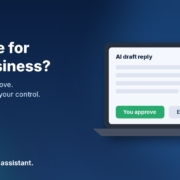
Featured image asking is AI safe for small business, showing a laptop with an AI draft reply and a green You approve button, with a gold padlock above it

When I talk to small business owners about AI, the first question usually isn’t “what can it do?” It’s “can I actually trust it?” Fair enough. You’ve spent years building your reputation, your customer list and your way of doing things. The idea of a tool making decisions on your behalf, or your customers’ details ending up somewhere they shouldn’t, is a good reason to hold back.

You’re not alone in feeling that way. The National AI Centre’s AI adoption insights for December 2025 to February 2026 found that around 65% of businesses not adopting AI pointed to trust, either distrust of AI making decisions or wanting to keep human control of their processes.

So is AI safe for small business in Australia? It can be, if you set a few simple rules before you start. In this post I’ll walk you through the five I use: AI drafts and you approve, know what never goes in, pick the right account and settings, write a one-page staff policy, and understand the privacy basics. None of this needs a tech team. It works the same whether you use ChatGPT, Claude, Grokbot or any AI assistant.

A quick note: this is practical guidance from someone who sets up AI for small businesses, not legal advice. If you’re unsure about your obligations, talk to your lawyer or industry association.

Rule 1: AI drafts, you approve

This is the most important rule, and it answers most of the “losing control” worry on its own. In the setups I build, AI doesn’t make the final call. It does the first draft and a human signs it off.

That means:

  • AI writes the reply to an enquiry, and you read it before it’s sent
  • AI drafts the quote from your notes, and you check every price
  • AI sorts your inbox and flags what’s urgent, and you decide what to do about it
  • AI summarises your week’s numbers, and you choose the actions

Start with “draft only” and earn trust

When you first set up an AI agent, keep it in draft-only mode. Read everything it produces for a couple of weeks. You’ll quickly see where it’s reliable and where it needs better instructions. Only once you’re genuinely comfortable should you consider letting low-risk, repeatable messages go out with lighter checking, and even then, keep a human on anything involving money, complaints or promises.

Decide what always needs a human

Write down the short list of things AI should never decide on its own. For most businesses it looks something like this:

  • Prices, discounts and refunds
  • Anything about bank details or payments
  • Complaints, disputes and anything legal
  • Hiring, firing or staff matters
  • Promises about timeframes or results

Put that list into your AI instructions too, so the assistant knows to flag these for you instead of answering them.

Rule 2: Know what not to paste into AI

Most data worries come down to one habit: people paste in more than the job needs. The fix is simple. Give the AI only what it needs to do the task, and leave out the rest.

Never paste these

  • Passwords, logins and security codes
  • Full bank account or card numbers
  • Tax file numbers and identity documents
  • Health information about customers or staff
  • Anything you’ve promised to keep confidential, such as a client’s commercial details under an agreement

Strip out personal details when you can

A lot of the time, AI doesn’t need to know who the customer is. If you want help writing a reply to a tricky email, you can replace names, phone numbers and addresses with placeholders like [customer] or [suburb]. The draft will be just as good, and you add the real details back in before you send it.

A good test before you paste anything: would I be comfortable if this customer saw exactly what I put in? If the answer is no, take it out.

Rule 3: Pick the right account and check your data settings

Not all AI accounts handle your data the same way. Free personal accounts, paid personal accounts and business or team accounts often come with different terms about how your conversations are stored and whether they can be used to improve the provider’s models.

What to check in your AI assistant

  • Training settings: many assistants have a setting to stop your chats being used for model training. Find it and decide on purpose, rather than leaving the default.
  • History and retention: check how long chats are kept and how to delete them.
  • Business plans: if your team uses AI for work, a business or team plan usually gives you more control over data and who has access. Read the provider’s current terms rather than relying on what someone said online, because these change.
  • Connected apps: if you connect AI to your email, calendar or files, only connect what the job needs, and review those connections every few months.

One account for work, one for personal

Keep work use on a work account. It’s far easier to manage access, settings and handover when staff aren’t mixing business data into their personal accounts.

Rule 4: Write a one-page staff AI policy

If anyone besides you uses AI in the business, you need a short policy. Not a 30-page document nobody reads. One page, plain English, that people can actually follow.

What to put on the page

  1. Approved tools: which AI assistants staff can use for work, and on which accounts
  2. What’s OK: drafting emails, summarising notes, writing first drafts of documents, brainstorming
  3. What’s not OK: the “never paste” list from Rule 2
  4. The approval rule: AI drafts, a person checks before anything goes to a customer
  5. Who to ask: one named person for questions or if something goes wrong

Let AI write the first draft of the policy

Here’s an example prompt you can adapt:

“I run a [type of business] in [city] with [number] staff. Write a one-page AI use policy in plain Australian English. Include approved tools ([list your tools]), what staff can use AI for, what they must never paste in (passwords, bank details, tax file numbers, health information, confidential client details), a rule that a person checks everything before it goes to a customer, and who to contact with questions ([name]). Keep it under 400 words.”

Then read it, change anything that doesn’t fit how you work, and go through it with the team. Five minutes at a team meeting is enough.

Rule 5: Understand the Australian privacy basics

The Office of the Australian Information Commissioner (OAIC) is the place to go for the official word on privacy. Two pages are worth bookmarking.

Does the Privacy Act apply to you?

The OAIC’s small business page explains that most small businesses with an annual turnover of $3 million or less aren’t covered by the Privacy Act, but some are regardless of turnover, including health service providers and businesses that trade in personal information. It has a checklist to help you work out where you stand. Even if you’re not covered, the OAIC recommends protecting the personal information you hold as best practice, and your customers will expect it anyway.

The OAIC’s guidance on AI products

The OAIC has published guidance on privacy and the use of commercially available AI products. It’s written for organisations using tools like the AI assistants above, and it’s worth a read before you put customer information into any of them. The Australian Privacy Principles quick reference is also handy, especially the principles on using and disclosing personal information and keeping it secure.

If you’re covered by the Act and plan to use AI with customer data, it’s worth getting proper advice. That’s a small cost compared with getting it wrong.

What to do this week

  1. Pick one task where AI drafts and you approve. Enquiry replies or meeting notes are good places to start. If you’re not sure which, my post on where to start with AI in a small business walks you through choosing one.
  2. Check your settings in the AI assistant you use: training, history and connected apps.
  3. Write your “never paste” list and your “always needs a human” list.
  4. Draft your one-page policy with the prompt above, then share it with the team.
  5. Do the OAIC checklist to see whether the Privacy Act applies to you.

That’s an hour or two of work, and it puts you in a much stronger position than most businesses that are already using AI without any rules at all.

Frequently asked questions

Is AI safe for small business in Australia?

It can be, if you keep a human in charge of decisions, keep sensitive information out, use the right account settings and know your privacy obligations. The risk usually comes from how AI is used, not from using it at all.

Will AI send messages to my customers without me knowing?

Only if you set it up that way. You can run AI in draft-only mode, where it writes and you send. That’s how I recommend everyone starts, and for anything involving money or complaints, it’s how I recommend it stays.

Do I need a business account, or is a free one fine?

For quick personal tasks with no customer information, a free account with sensible settings may be enough. If your team uses AI for work or you handle customer details, a business or team plan usually gives you more control. Check the provider’s current terms before you decide.

What if a staff member pastes something they shouldn’t?

Don’t panic. Delete the chat, check the provider’s options for removing data, and tell the person responsible in your policy. If personal information was involved and you’re covered by the Privacy Act, check the OAIC’s guidance on what to do next. Then use it as a reminder for the whole team about the “never paste” list.

Does AI make mistakes?

Yes. It can get facts wrong or sound confident when it shouldn’t. That’s exactly why the “AI drafts, you approve” rule matters. Treat everything it writes as a first draft from a keen new staff member: useful, quick, and always worth checking.

Want help setting AI up safely?

If you’d like a second set of eyes on where AI fits in your business and the guardrails you need, book an AI audit and we’ll go through it together. Or start with the free AI agents pack. Every agent in it is built on the “AI drafts, you approve” rule, and it works with ChatGPT, Claude, Grokbot or any AI assistant. You might also like my guide to sorting your inbox with AI without missing a lead.
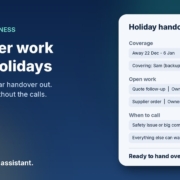
Dark blue gradient graphic with the headline Hand over work before holidays beside a mock holiday handover card listing coverage dates, open work owners and when to call, marked Checked

Every year it’s the same story. The Christmas break is a couple of weeks away, everyone’s flat out trying to finish jobs, and the handover gets squeezed into the last afternoon before you lock up. Then on 2 January someone’s ringing you at the beach because nobody knows where the supplier quote is, which customer was promised a callback, or what the password is for the booking system.

In this post I’ll show you how to hand over work before holidays with AI. You do a quick brain dump, let your assistant turn it into a clear handover with a coverage checklist and a who-owns-what list, then you check it and send it. It works with ChatGPT, Claude, Grokbot or any AI assistant you already use, and it takes an hour or two instead of a frantic afternoon.

Why holiday handovers go wrong

Most small business handovers don’t fail because people don’t care. They fail because the important stuff lives in your head, and writing it down feels like a job for later. The common problems:

  • The handover is written at the last minute, so it’s rushed and patchy
  • It lists tasks but not the context: who the customer is, what was promised, what “done” looks like
  • Nobody is clearly named as owner, so two people do the same thing or nobody does it
  • It doesn’t say what to do when something goes wrong, so the default is “call the boss”
  • Logins and access are left out, or worse, pasted into an email

AI won’t magically know what’s going on in your business. What it’s very good at is taking a messy dump of everything you’ve said and turning it into a tidy, consistent document that someone else can actually follow. You supply the facts. It supplies the structure.

What a good holiday handover includes

Before you open your AI assistant, it helps to know what you’re aiming for. A useful handover has five parts:

  1. Dates and coverage: who’s away when, who’s covering, and when the business is closed, open or on reduced hours
  2. Open work: every job, quote or customer conversation that’s still live, with where it’s up to and the next step
  3. Who owns what: one named person for each item, plus a backup
  4. What can wait: things that don’t need touching until you’re back, so nobody wastes time on them
  5. When to call: the short list of situations that are genuinely worth interrupting your holiday for, and how to reach you

If your handover covers those five things clearly, the person covering can make good decisions without guessing.

How to hand over work before holidays with AI

Step 1: Do a brain dump, not a document

Don’t try to write the handover yourself. Instead, spend fifteen or twenty minutes getting everything out of your head in whatever form is fastest. You can type rough notes, use voice dictation on your phone while you drive, or talk through your week out loud and paste in the transcript.

Go through the places work hides:

  • Your inbox, especially anything flagged or waiting on a reply
  • Your calendar for the weeks you’re away and the first week back
  • Open quotes, jobs and invoices in your job management or accounting software
  • Promises you’ve made on the phone (“I’ll get back to you after Christmas”)
  • Recurring tasks: payroll, BAS reminders, supplier orders, social posts, backups

Don’t worry about order or spelling. Messy is fine. The goal is to get it all out so nothing lives only in your head.

Step 2: Ask AI to turn it into a structured handover

Paste your brain dump into your AI assistant with a clear prompt. Something like this:

I’m going on holiday from [date] to [date]. [Name] is covering for me. Below are my rough notes about open work. Turn them into a handover document with these sections: dates and coverage, open work (one item per row with customer or project, where it’s up to, next step, due date and owner), recurring tasks during the break, things that can wait until I’m back, and when to call me. Use plain Australian English. Don’t add anything that isn’t in my notes. If something is unclear or missing, list it as a question at the end instead of guessing.

That last instruction matters. You want the AI to flag gaps, not fill them with confident guesses. A handover with a made-up due date is worse than one with a question mark.

Step 3: Build the coverage checklist

Next, ask for a simple coverage checklist for the whole break. For example:

Using the handover above, create a day-by-day coverage checklist for the break. For each working day, list who’s on, what needs checking (inbox, phones, website enquiries, bookings) and any task due that day. Mark the public holidays and days we’re closed.

You’ll get a one-page view of the break that anyone can follow. Check the dates against your own calendar and your state’s public holidays, because AI can get those wrong. It’s your job to confirm them, not the assistant’s.

Step 4: Make the who-owns-what list

Ownership is where handovers usually fall apart, so give it its own list. Ask the AI to pull every item from the handover into a short table: the task, the owner, the backup, and how the owner will know it’s done. If there’s only one person covering, that’s fine. The table still makes it obvious when one person has been handed too much.

Look down the list and ask yourself one honest question: if this person is sick on day two, does anyone else know what to do? If the answer is no, add a backup or move the task to “can wait”.

Step 5: Write the “when to call me” rules

This is the bit that protects your holiday. Ask the AI to help you draft a short list of situations worth interrupting you for, and a longer list of situations the person covering can handle on their own. You might decide:

  • Call me: a safety issue, a major customer complaint, anything involving a large payment or contract
  • Message me, no rush: a new enquiry that looks big, a supplier problem that can wait a day
  • Handle it yourself: routine questions, rebooking, small refunds within an agreed limit

Those categories are only examples. You set the rules and the limits. The AI just helps you write them clearly so there’s no grey area.

Step 6: Draft the customer and supplier messages

While you’ve got the context loaded, get the AI to draft the messages you’ll need: your out-of-office reply, a holiday hours note for your website and Google Business Profile, a short email to key customers with open jobs, and a reminder to suppliers about your closure dates. Read each one before it goes anywhere. You’re sending these under your name, so they need to sound like you and be accurate.

Step 7: Check it, then walk the person through it

AI gets you a strong first draft, but it doesn’t know what it doesn’t know. Read the whole handover with the person covering, ideally a few days before you leave rather than on the last afternoon. Go through the questions the AI flagged, fix anything wrong and let them ask their own questions. Twenty minutes of walking through it together beats a perfect document nobody has read.

A note on passwords and private information

Don’t paste passwords, banking details or sensitive customer information into an AI chat, and don’t put them in the handover document either. Instead, note in the handover where access lives, for example “booking system login is in the shared password manager”, and set up that access before you leave. If you don’t use a password manager yet, the holiday break is a good reason to start.

Also check your AI tool’s privacy settings and your own business rules before pasting customer details. Where you can, use first names or job numbers instead of full customer details in your brain dump.

Turn it into a template you reuse

Once you’ve done this once, save the prompts and the final handover as a template. Next time someone goes on leave, whether it’s Christmas, school holidays or a sick week, you start from the template instead of a blank page. You can even set it up as a simple AI agent: a saved set of instructions your assistant follows every time you paste in a brain dump, so the handover always comes out in the same format.

Frequently asked questions

How long does this take?

For most small businesses, the brain dump takes fifteen to thirty minutes, and turning it into a handover with AI takes another half an hour or so, plus time to check it. Allow longer the first time while you work out your prompts.

Which AI assistant should I use?

Any of the main ones will do the job: ChatGPT, Claude, Grokbot or another assistant you’re comfortable with. Clear notes and a good prompt matter far more than the tool.

What if I’m a sole trader with nobody to hand over to?

The same process still helps. Use it to write a clear “what happens while I’m away” plan: your out-of-office message, which enquiries can wait, and a list of what to pick up first when you’re back. Your future self is the person you’re handing over to.

Can AI work out what’s open by reading my inbox?

Some assistants can connect to email and calendars, which can help you find things you’ve forgotten. Treat what it finds as a starting list to check, not the final word, and only connect tools you’re comfortable giving access to.

Should I send the handover by email?

Put it somewhere shared that the person covering can find easily, like a shared drive or your team’s usual workspace, and send them the link. That way you can update one copy if something changes before you leave.

What should never go in the handover?

Passwords, full banking details and sensitive customer information. Say where access lives instead, and make sure the person covering can get in before you go.

Want a calmer break this year?

If you’d like help working out which parts of your business only run when you’re there, and which jobs AI can take off your plate, book an AI audit and we’ll go through it together. Or, if you’d rather start yourself, grab the AI agents pack. It works with ChatGPT, Claude, Grokbot or any AI assistant, and you can have your first agent running this week.

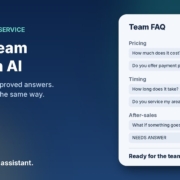
Dark blue gradient graphic with headline Build a team FAQ with AI beside a mock Team FAQ card grouping customer questions under Pricing, Timing and After-sales with an Approved badge

You already know the questions. “How much does it cost?” “Do you service my area?” “How long does it take?” “What happens if something goes wrong?” Your team answers them every week by email, by phone and in website chat. The trouble is, everyone answers them a little differently, and the good answers live in someone’s sent folder instead of somewhere the whole team can find them.

In this post I’ll show you how to build a team FAQ from real customer questions with AI. You collect the questions customers actually ask, let your assistant group them and draft answers, then you approve every answer before anyone uses it. It works with ChatGPT, Claude, Grokbot or any AI assistant you already use, and you can have a first version done in an afternoon.

Why most FAQs don’t help

Plenty of small businesses have an FAQ page. Very few have one that matches what customers really ask. The usual problems:

  • It was written once, at launch, from guesses about what people might ask
  • It answers questions nobody asks and skips the ones that land in the inbox daily
  • Staff don’t use it, so they rewrite the same reply from scratch each time
  • Answers drift out of date when prices, service areas or policies change

The fix is to flip the order. Start with the real questions, then write the answers. AI is very good at the boring middle part: sorting a pile of messy messages into clear groups and drafting a first answer for each. You’re good at the part that matters most, which is making sure every answer is true.

What a useful team FAQ looks like

A team FAQ isn’t just a public web page. It’s the shared set of approved answers your team pulls from when replying to customers. Each entry should have:

  1. The question, written the way customers actually phrase it
  2. A short approved answer, two to four sentences in plain English
  3. A longer version, if the topic needs detail or steps
  4. An owner, the person who checks it stays accurate
  5. A “last checked” date, so you know when it might be stale

Some entries can go straight onto your website. Others, like how you handle refunds case by case, stay internal. Decide that per question, not all at once.

How to build a team FAQ from real customer questions with AI

Step 1: Collect the questions customers actually ask

Pick a window, say the last 60 to 90 days, and pull questions from the places customers reach you:

  • Your enquiry inbox and general email
  • Website chat transcripts and contact form submissions
  • Social media DMs and comments
  • Notes from phone calls, if your team jots them down
  • Questions that come up on sales calls (related: prep for a sales call with AI)

You don’t need the whole conversation. Copy just the customer’s question into a document, one per line. Remove names, phone numbers, addresses and anything else personal as you go. If a question appears ten times, keep a few copies, because frequency is useful information.

Step 2: Ask AI to group the questions

Open your assistant and paste the list with a prompt like this:

“Below is a list of real questions customers have asked my small Australian business, one per line, with personal details removed. Group them into themes (for example pricing, timing, service area, process, after-sales). For each theme, list the distinct questions in plain customer wording, merge near-duplicates, and show roughly how many times each came up in this list. Don’t add questions that aren’t in the list. Use Australian English.”

Read the groups. Merge anything that’s really the same question and split anything that’s two questions stuck together. This list is now your FAQ outline, ordered by what comes up most.

Step 3: Give AI the facts, then ask for draft answers

This is where most people go wrong. If you just ask AI to “answer these questions”, it will make up prices, timeframes and policies that sound plausible. Instead, give it your real facts first: your price list or ranges, service areas, standard turnaround, warranty and refund terms, and how you like to talk to customers. Then:

“Using only the business facts I’ve provided above, write a draft answer for each question in the FAQ outline. Give a short answer (2–4 sentences) and, where helpful, a longer version with steps. Plain Australian English, friendly and direct. If my facts don’t cover a question, write NEEDS ANSWER instead of guessing. Never invent prices, timeframes, guarantees, stats or customer results.”

The “NEEDS ANSWER” rule is the most important line in the prompt. Every gap it flags is a question your team has been answering inconsistently, and that’s worth knowing.

Step 4: Approve every answer

Go through the drafts one by one. For each answer, check:

  • Is every fact right, including prices, areas and timeframes?
  • Does it promise anything you don’t actually guarantee?
  • Does it sound like your business, not a brochure?
  • Is there anything that should stay internal rather than go on the website?

Fill in the NEEDS ANSWER gaps yourself, or ask the person in your team who knows. Then mark each entry approved, with an owner and today’s date. Anything not approved doesn’t get used. That’s the rule that keeps the FAQ trustworthy.

Step 5: Put it where your team will use it

An FAQ that sits in a forgotten folder is no better than none. Store the approved version somewhere your team already works: a shared doc, your help desk’s saved replies, or your CRM’s templates. Publish the customer-safe entries on your website too. If you write process documents for the team, the same approach works there (see write SOPs with AI).

A fuller prompt you can save

Once you’ve done this once, save a reusable prompt for adding new questions as they come in:

“Role: FAQ assistant for a small Australian business. Inputs: our approved FAQ, our business facts, and a list of new customer questions. Tasks: 1) Match each new question to an existing FAQ entry if one already answers it. 2) For genuinely new questions, draft a short and long answer using only our facts. 3) Flag any existing answer that seems to conflict with the facts or looks out of date. Rules: plain Australian English; never invent prices, timeframes, guarantees, stats, quotes or results; write NEEDS ANSWER where our facts don’t cover it; flag any personal information in the input so I can remove it.”

Prompts for common FAQ jobs

  • Turn an FAQ into email replies: “Using this approved FAQ answer, write a short reply to this customer’s email. Keep the facts exactly as approved. Don’t add new promises.”
  • Find gaps: “Compare this month’s customer questions with our FAQ. List questions we don’t cover yet, ordered by how often they came up.”
  • Spot stale answers: “Here are our updated prices and policies. List every FAQ answer that no longer matches and suggest the fix.”
  • Write the website version: “From the approved FAQ entries marked public, write a website FAQ section with clear headings. Keep answers short and keep every fact as approved.”
  • Train a new starter: “Turn our FAQ into a 15-question quiz with answers, so a new team member can check they know our standard replies.”

What to leave out of the AI chat

Customer messages are full of personal information. Before you paste anything:

  • Strip names, emails, phone numbers and addresses from every question
  • Remove order numbers, account details and payment information
  • Leave out health, financial or other sensitive details customers mentioned
  • Only paste the question itself, not the whole thread

For Australian businesses, the Office of the Australian Information Commissioner (OAIC) has practical guidance on using AI tools with personal information: OAIC guidance on privacy and commercially available AI products. It’s worth a read before this becomes a team habit.

Keep the FAQ alive

The first version is the hard part. Keeping it useful takes about 20 minutes a month:

  1. Once a month, collect new customer questions from the inbox and chat
  2. Run them through your saved FAQ prompt to find matches and gaps
  3. Approve new answers and update anything flagged as out of date
  4. Whenever prices or policies change, update the FAQ the same day
  5. Ask your team which questions they still answer from scratch, and add those

Over time, the questions that keep coming up tell you something. If everyone asks the same thing before buying, that answer probably belongs on your website, your quote template or your sales page, not just in the FAQ.

Frequently asked questions

How many questions do I need to start?

Thirty to fifty real questions is plenty for a first version. You’ll usually find they boil down to ten or fifteen distinct topics. Start small and add as new questions arrive.

Which AI assistant should I use?

Any of the main ones will do: ChatGPT, Claude, Grokbot or another assistant you’re comfortable with. The real questions, your facts and your approval matter far more than the tool.

Can AI just write the FAQ without my input?

It can write something, but it will guess at your prices, policies and timeframes. That’s how a wrong answer ends up in front of a customer. Give it your facts, and approve every answer before it’s used.

Should the team FAQ and the website FAQ be the same?

Mostly, but not completely. Keep one approved source and mark each entry public or internal. Things like case-by-case refund handling or escalation steps usually stay internal.

How do I stop answers going out of date?

Give each entry an owner and a “last checked” date, and update the FAQ whenever prices or policies change. A quick monthly review catches the rest.

Can I use the FAQ to power a website chatbot?

Yes, an approved FAQ is a good starting point for a website chat assistant, because it gives the bot real answers to work from. Keep a person in the loop for anything the FAQ doesn’t cover.

Want help turning your inbox into answers?

If you’d like help working out which customer questions are worth answering once and reusing, and which other admin AI can take off your plate, book an AI audit and we’ll go through it together. Or, if you’d rather start yourself, grab the AI agents pack. It works with ChatGPT, Claude, Grokbot or any AI assistant, and you can have your first agent running this week.

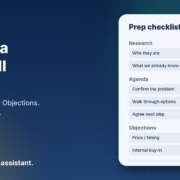
Dark blue gradient card with headline Prep for a sales call with AI beside a mock Prep checklist showing Research, Agenda and Objections with a Checked badge

Most sales calls don’t fall apart because you don’t know your product. They fall apart because you walked in cold. You skimmed the lead form on the way to the Zoom link, forgot what they said three weeks ago, and spent the first ten minutes reconstructing context instead of listening. The prospect notices. You feel it too.

In this post I’ll show you a simple way to prep for a sales call with AI. You take the notes you already have — the form fill, the last email, a LinkedIn bio, a past call summary — and ask your assistant to draft a research brief, an agenda and likely objections. You check every line. You stay in control of what you send and what you say. It works with ChatGPT, Claude, Grokbot or any AI assistant you already use.

Why sales call prep gets skipped

In a small business, the person on the call is often also the person who wrote the quote, answered the inbox and ran the last delivery. Prep gets squeezed. Common shortcuts:

  • Open the CRM two minutes before the call and hope the last note is useful
  • Re-read the original enquiry and nothing else
  • Wing it because “we’ve spoken before”
  • Skip prep entirely when the calendar is packed

None of that is laziness. It’s load. The fix isn’t a longer prep ritual — it’s a short, repeatable one that turns scattered notes into something you can actually use in five minutes.

What “good” prep looks like

Before a sales or discovery call, you want one page (or less) that covers four things:

  1. Who they are — company, role, what they do, why they reached out
  2. What we already know — past emails, quotes, open issues, promises made
  3. Agenda — three to five topics you’ll cover, in order
  4. Likely objections — price, timing, fit, internal buy-in — with plain-English responses you can adapt

If you have that, you walk in calm. You listen better because you’re not hunting for context mid-call. AI is good at assembling this shape from messy input. You are good at checking that nothing was invented and that the tone matches how you actually talk.

How to prep for a sales call with AI

Step 1: Gather what you already have

Don’t start researching the whole internet. Start with public or first-party notes you already own:

Paste only what you need. Strip passwords, private account numbers and anything personal that isn’t required for the call. The goal is a clean brief, not a data dump.

Step 2: Ask for a research brief — not a novel

Open ChatGPT, Claude, Grokbot or whichever assistant you use, and paste your notes with a prompt like this:

“You’re helping me prep for a sales / discovery call for my small Australian business. Below are notes I already have about the prospect (enquiry, emails, CRM notes, public bio). Produce a one-page prep brief with: 1) Who they are (2–4 sentences), 2) What we already know / promised, 3) Open questions I still need answered on the call, 4) Suggested agenda (3–5 items), 5) Likely objections with a short plain-English response I can adapt. Use Australian English. Do not invent company facts, stats, testimonials or results I didn’t provide. If something is missing, mark it as Unknown. End with a 5-bullet ‘walk-in checklist’.”

That “Unknown” rule matters. A tidy brief full of guesses is worse than a short brief with honest gaps.

Step 3: Check every claim before you rely on it

AI will happily fill holes. Read the draft and check:

  • Did it invent a company size, revenue figure or industry claim?
  • Did it turn a maybe into a promise you supposedly made?
  • Are the objections grounded in what they actually said, or generic filler?
  • Is anything confidential that shouldn’t sit in this chat?

Fix those, then ask: “Update the brief with my corrections. Keep the same five sections. Don’t add new facts.”

Step 4: Lock the agenda and objection notes

Copy the agenda into your calendar invite notes or a sticky you keep beside the screen. Keep objection responses as bullet prompts, not scripts — you want to sound like yourself, not a brochure. If a quote is likely to come next, have your numbers ready; for faster quoting after the call, see write quotes faster with AI.

Step 5: After the call, close the loop the same day

Prep is half the job. Within an hour of hanging up, dump a short voice note or bullets into your assistant: what they said, what you promised, next step with date. Update the CRM. Send the follow-up while the call is still warm — related reading: follow up leads with AI.

“From these post-call notes, list: pain points confirmed, what I promised to send, next step with owner and date, and anything still unclear before I quote. Don’t invent numbers or commitments.”

A fuller prompt you can save

Once you’ve done this a few times, save a reusable prep prompt so you’re not rewriting it every call:

“Role: sales-call prep assistant for a small Australian business. Input: enquiry, emails, CRM notes and any public bio I provide. Output only: Who they are | What we already know / promised | Open questions for the call | Agenda (3–5 items) | Likely objections with short adaptable responses | Walk-in checklist (5 bullets). Rules: plain Australian English; never invent company facts, stats, quotes, testimonials or results; mark missing facts as Unknown; flag anything that looks like personal or sensitive data so I can remove it before sharing. Ask me up to three clarifying questions only if a promised next step or decision-maker is genuinely ambiguous.”

Paste that once at the top of a chat, then drop each prospect’s notes underneath. Same structure every time means your prep stays short and scannable.

Prompts for common call types

  • First discovery call: “From this enquiry and email thread, draft who they are, what problem they named, open questions, a 4-item agenda, and three likely objections. Mark unknowns. Don’t invent budget.”
  • Quote review call: “Using the quote notes and their last email, list what they liked, what they pushed back on, open questions, and a short agenda focused on deciding next steps. Don’t invent discounts.”
  • Renewal / upsell chat: “From CRM notes and recent support emails, summarise current relationship, open issues, what we’ve delivered that they valued (only from my notes), and likely concerns about renewing.”
  • Partner / referral intro: “From the referrer’s note and the prospect’s public bio, draft a short who-they-are, why they were referred, open questions, and a light agenda. Don’t invent the referral reason.”
  • Re-engage cold lead: “From the old enquiry and last contact date, summarise what they asked for then, what might have changed (Unknown if not said), and a short re-intro agenda. Don’t invent why they went quiet.”

What to leave out of the AI chat

Sales notes often include things that shouldn’t go into a general AI tool. Before you paste:

  • Strip passwords, one-time codes and private account details
  • Remove home addresses, health notes, payroll or bank details you don’t need for the brief
  • Don’t paste full contracts just to extract “next meeting Tuesday”
  • Use initials or project codes when a full name isn’t required

For Australian businesses, the Office of the Australian Information Commissioner (OAIC) publishes practical guidance on using commercially available AI products with personal information — worth a read before you make this a team habit: OAIC guidance on privacy and commercially available AI products. When in doubt, keep the AI input to business context and leave sensitive detail in your own systems.

Make prep a habit, not a scramble

The workflow only pays off if you do it every time. A simple rule that works for most owners:

  1. Block five to ten minutes before every sales or discovery call
  2. Paste what you already have into your saved prep prompt
  3. Check the brief — especially Unknowns and objections — then walk in
  4. After the call, capture notes and send the follow-up the same day
  5. Once a week, skim open next-steps in your CRM or task list and chase what’s still hanging

If the same objections keep showing up, that’s useful product feedback — not just sales noise. Capture them and review in your weekly ops pass.

Frequently asked questions

Do I need to scrape the prospect’s whole website?

No. Start with what you already have. A public About page or LinkedIn bio you’ve already opened is enough. More data isn’t better if it invents a story you then believe.

Which AI assistant should I use?

Any of the main ones will do — ChatGPT, Claude, Grokbot or another assistant you’re already comfortable with. The prompt and your check matter more than the brand.

What if I have almost no notes on the prospect?

Say so in the prompt and ask for an agenda and open questions only. Mark company facts as Unknown. A short honest brief beats a long invented one.

Should I read the AI script word-for-word on the call?

No. Use the agenda and objection bullets as prompts. Talk like yourself. Scripts sound like scripts.

Is it okay to paste client names into the AI tool?

Be careful. For many tools, treat anything you paste as data you wouldn’t mind a third party processing. Use initials or project codes when you can, strip personal details, and follow the OAIC guidance linked above. When the notes are sensitive, keep the AI step on a tool your business has reviewed.

Can my team use the same prep prompt?

Yes — and they should. Save the fuller prompt in a shared doc so every call brief looks the same. Consistency makes handovers easier and stops prep quality depending on who is free that hour.

Want this running as a repeatable habit?

If you’d like help mapping which calls are worth prepping this way, and which other admin AI can take off your plate, book an AI audit and we’ll walk through it together. Or, if you’d rather start yourself, grab the AI agents pack. It works with ChatGPT, Claude, Grokbot or any AI assistant, and you can have your first agent running this week.

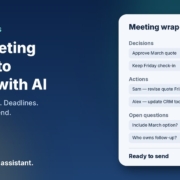
Dark blue gradient card with headline Turn meeting notes into actions with AI beside a mock wrap-up showing Decisions, Actions and Open questions with a Checked badge

After almost every meeting I sit in with small business owners, the same thing happens. Someone closes the laptop, everyone nods, and the notes sit in a phone, a scrap of paper or a half-finished Google Doc. Decisions were made. Jobs were handed out. Deadlines were mentioned. A week later, half of it has slipped. Not because anyone is lazy — because the notes never turned into a clear action list.

In this post I’ll show you a simple way to turn meeting notes into actions with AI. You dump the rough notes or transcript in, the AI pulls out decisions, owners, deadlines and open questions, you check the list, and you send a short action summary. It works with ChatGPT, Claude, Grokbot or any AI assistant you already use. You stay in charge of what goes out.

Why meeting notes die on the vine

Most small businesses don’t have a dedicated note-taker. The person running the meeting is also trying to think, talk and write. So the notes end up as:

  • Bullet points with no owners (“follow up quote”)
  • Half-sentences only the writer understands
  • A long transcript nobody will re-read
  • Nothing at all — “we’ll remember”

When the next meeting rolls around, people spend the first ten minutes reconstructing what was agreed last time. That’s wasted time you can get back with a short, repeatable habit.

What “good” looks like after a meeting

A useful meeting wrap-up is one page or less. It has four parts:

  1. Decisions — what we agreed, in plain English
  2. Actions — who does what, by when
  3. Open questions — things we still need to answer
  4. Parking lot — ideas raised that aren’t for this week

If your wrap-up has those four, anyone who missed the meeting can catch up in two minutes. That’s the bar. AI is good at building this shape from messy input. You are good at checking that the names, dates and wording match what actually happened.

How to turn meeting notes into actions with AI

Step 1: Capture something — anything

You don’t need a perfect transcript. Pick one capture method and stick to it:

  • Handwritten or typed bullets during the meeting
  • Voice notes you dictate into your phone right after
  • A meeting transcript from your video call tool (if you already have one)
  • A rough email you send yourself with “stuff we said”

The messier the capture, the more useful the AI step. Don’t polish first. Get it out of your head while it’s still fresh — ideally within an hour of the meeting ending.

Step 2: Paste it into your AI assistant with a clear ask

Open ChatGPT, Claude, Grokbot or whichever assistant you use, and paste your notes with a prompt like this:

“You’re helping me turn rough meeting notes into a clear action list for my small business. Below are my messy notes / transcript from a meeting about [topic]. Extract and organise into four sections: 1) Decisions (what we agreed), 2) Actions (owner, task, deadline — if a deadline wasn’t said, mark Deadline: not set), 3) Open questions, 4) Parking lot. Use plain Australian English. Don’t invent owners, dates or decisions I didn’t mention. If something is unclear, put it under Open questions instead of guessing. End with a short ‘send-ready’ summary I can paste into email or chat.”

That last instruction matters. You want something you can send, not a long report.

Step 3: Check every line before anyone else sees it

AI is fast at sorting. It is also happy to invent a tidy story when your notes are vague. Read the draft and check:

  • Are the owners right? (Not “the team” — a real name)
  • Are the deadlines real, or did the AI fill one in?
  • Did it turn a maybe into a decision?
  • Is anything confidential that shouldn’t leave this chat?

Fix those, then ask: “Update the list with my corrections and keep the same four sections.”

Step 4: Send a short action list the same day

Copy the send-ready summary into email, Slack, Teams or your project tool. Keep it short. Something like:

“Quick wrap from today’s meeting. Decisions: … Actions: Sam — send revised quote by Friday; Alex — update CRM notes today. Open: do we want to include the March option? Ping me if I’ve got an owner or date wrong.”

Sending it the same day is the whole game. A perfect list next week is less useful than a good-enough list today.

Step 5: Drop actions into wherever you already track work

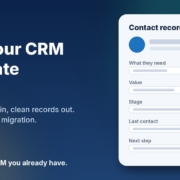
If you use a CRM, a shared task board or a simple spreadsheet, move each action there with the owner and date. If you don’t have a tracker yet, the action email itself is fine for a while. The point is that actions leave the notes and land somewhere people look. Related reading: keep your CRM up to date with AI and run a weekly business review with AI.

A fuller prompt you can save

Once you’ve done this a few times, save a reusable prompt so you’re not rewriting it every meeting:

“Role: meeting wrap-up assistant for a small Australian business. Input: rough notes or transcript. Output only: Decisions | Actions (Owner — Task — Deadline) | Open questions | Parking lot | Send-ready summary (under 150 words). Rules: plain Australian English; never invent owners, deadlines or decisions; mark missing deadlines as ‘not set’; flag anything that sounds like personal or sensitive data so I can remove it before sharing. Ask me up to three clarifying questions only if a decision or owner is genuinely ambiguous.”

Paste that once at the top of a chat, then drop each meeting’s notes underneath. Same structure every time means people know what to expect.

Prompts for common meeting types

  • Sales / discovery call: “From these notes, list: prospect pain points, what we promised to send, next step with owner and date, and anything we still need to confirm before quoting.”
  • Internal ops meeting: “Turn these notes into actions only. Drop discussion. One line per action: Owner — Task — Deadline. Flag anything with no owner.”
  • Client project check-in: “Extract decisions that change scope, budget or timeline. List client asks separately from our internal actions.”
  • Hiring / interview debrief: “Summarise strengths, concerns and agreed next step. Do not invent ratings. Keep candidate personal details out of the send-ready summary.”
  • Board or advisor catch-up: “List decisions and open questions only. Keep the send-ready summary under 100 words.”

What to leave out of the AI chat

Meeting notes often include things that shouldn’t go into a general AI tool. Before you paste:

  • Strip passwords, one-time codes and private account details
  • Remove or blur personal information you don’t need for the action list (home addresses, health notes, payroll figures)
  • Don’t paste full contracts or bank details just to extract “send the invoice”

For Australian businesses, the Office of the Australian Information Commissioner (OAIC) publishes practical guidance on using commercially available AI products with personal information — worth a read before you make this a team habit: OAIC guidance on privacy and commercially available AI products. When in doubt, keep the AI input to decisions and tasks, and leave sensitive detail in your own systems.

Make it a habit, not a one-off

The workflow only pays off if you do it every time. A simple rule that works for most owners:

  1. End every meeting with two minutes of capture (bullets or a voice note)
  2. Run the AI wrap-up before you open the next app
  3. Send the action list before you leave the desk (or the car park)
  4. Once a week, skim last week’s actions in your weekly review and chase what’s still open

If the same kind of meeting keeps producing the same open questions, that’s a process gap — the kind you can turn into a short SOP later. See how to write SOPs with AI.

Frequently asked questions

Do I need a fancy meeting transcription tool?

No. Rough bullets or a voice note after the meeting are enough. A transcript helps if you already have one, but it’s not required. The AI step works on messy input.

Which AI assistant should I use?

Any of the main ones will do — ChatGPT, Claude, Grokbot or another assistant you’re already comfortable with. The prompt and your check matter more than the brand.

What if nobody was assigned an owner in the meeting?

Don’t let the AI invent one. Put those items under Open questions or mark Owner: not set, then decide before you send. A list with honest gaps is better than a tidy list with the wrong names.

How long should the send-ready summary be?

Under about 150 words. If people need the full detail, they can ask. The wrap-up’s job is to make the next steps obvious.

Is it okay to paste client names into the AI tool?

Be careful. For many tools, treat anything you paste as data you wouldn’t mind a third party processing. Use initials or project codes when you can, strip personal details, and follow the OAIC guidance linked above. When the notes are sensitive, keep the AI step on your own device or a tool your business has reviewed.

Can my team use the same prompt?

Yes — and they should. Save the fuller prompt in a shared doc so every wrap-up looks the same. Consistency makes it easier to scan and harder for actions to hide.

Want this running as a repeatable habit?

If you’d like help mapping which meetings are worth wrapping this way, and which other admin AI can take off your plate, book an AI audit and we’ll walk through it together. Or, if you’d rather start yourself, grab the AI agents pack. It works with ChatGPT, Claude, Grokbot or any AI assistant, and you can have your first agent running this week.

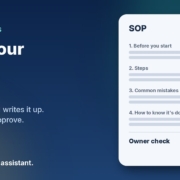
Illustration of a one-page SOP document card with numbered sections and an Approved owner check, next to the headline Write your SOPs with AI

In most small businesses I work with, the way things get done lives in one person’s head. Usually the owner’s. How to quote a job, how to set up a new customer, what to check before an order goes out, which supplier to ring when something breaks. It all works fine until that person is sick, on holidays, or trying to hire someone new. Then everything slows down, and the same questions get asked over and over.

The fix is simple and boring: write it down. The problem is that nobody has time to sit down and write a stack of process documents. That’s exactly where AI helps. In this post I’ll show you how to write standard operating procedures (SOPs) with AI, step by step, using ChatGPT, Claude, Grokbot or any AI assistant you already have. You do the talking. The AI does the typing and tidying. You stay in charge of what goes in.

What an SOP actually is (and why small businesses skip them)

An SOP is just a short, written set of steps for a task you do regularly. It answers three questions: what is this task, who does it, and how do we do it properly every time. It doesn’t need to be a 40-page manual. For most small businesses, a one-page checklist per task is plenty.

When I ask owners why they don’t have them, I hear the same reasons:

  • It takes too long. Writing a clear process from a blank page can take an hour or more, and there’s always something more urgent.
  • It’s hard to explain what you do on autopilot. You’ve done the task so many times you skip steps without noticing.
  • They go out of date. You write one, the process changes, and nobody updates it.
  • Nobody reads them. Long, wordy documents get ignored.

AI deals with the first two really well, and makes the last two much easier to fix.

Why AI is good at this job

Writing an SOP is mostly turning messy, spoken knowledge into clear, ordered steps. That’s one of the things AI assistants do best. You can talk through a task the way you’d explain it to a new staff member, rambling and out of order, and the AI can turn it into a clean checklist in seconds. It can also ask you questions to fill the gaps you didn’t notice you left.

What it can’t do is know how your business works. It doesn’t know your systems, your customers or the shortcuts that cause problems. So the rule is the same as every other AI job I recommend: the AI drafts, you check. Every SOP should be read and approved by the person who actually does the task before anyone relies on it.

How to write SOPs with AI, step by step

Step 1: Pick the first three tasks

Don’t try to document the whole business. Start with three tasks that meet at least one of these:

  • You get asked how to do it more than once a month.
  • Mistakes in it cost you money or upset customers.
  • Only one person knows how to do it.

Common first picks are setting up a new customer, sending a quote, processing a refund, opening or closing the shop, and end-of-month admin.

Step 2: Talk it through, don’t write it

This is the bit that saves the most time. Open your AI assistant’s voice mode, or use the dictation on your phone, and just explain the task out loud as if you were training someone on their first day. Don’t worry about order or polish. Mention the tools you use, what can go wrong and what “done” looks like.

Another option is to record yourself (or a staff member) doing the task while narrating, then paste the transcript in. Either way, you’re capturing what’s really done, not what you think is done.

Step 3: Ask the AI to turn it into an SOP

Paste your notes or transcript in with a prompt like this:

“You’re helping me write a standard operating procedure for my small business. Below is my rough explanation of how we [task]. Turn it into a one-page SOP with: a purpose line, who does it, what you need before starting, numbered steps (one action per step), common mistakes to avoid, and how to know it’s done. Use plain Australian English. Don’t add steps I didn’t mention. Instead, list any gaps or questions at the end.”

That last line matters. You don’t want the AI inventing steps that sound sensible but aren’t how you work. Asking it to list gaps instead keeps it honest.

Step 4: Answer the gaps

The AI will usually come back with a handful of questions. “What happens if the customer doesn’t have an ABN?” “Who approves refunds over a certain amount?” These are the steps you do on autopilot. Answer them, and ask it to update the draft.

Step 5: Test it on someone else

Give the draft to someone who doesn’t normally do the task and watch them follow it. Wherever they get stuck or ask a question, the SOP needs fixing. Tell the AI what happened and get it to tweak the wording. This test is the most important step, and it’s the one people skip.

Step 6: Store it where people will find it

An SOP nobody can find is useless. Put them all in one shared folder, a shared drive or your team chat, with clear names like “SOP: Sending a quote”. Add the date and the owner of each one at the top.

Prompts you can copy

Here are a few more prompts that work well once you’ve got the basics going:

  • Turn an SOP into a checklist: “Turn this SOP into a short tick-box checklist someone can print and use on the job.”
  • Make it easier to read: “Rewrite this so a new staff member on their first week can follow it. Short sentences, no jargon.”
  • Update an old one: “Here’s our current SOP and here’s what’s changed. Update it and list exactly what you changed so I can check it.”
  • Build a training quiz: “Write five quick questions to check someone understands this SOP.”
  • Find what’s missing: “Here’s a list of the SOPs we have. Based on a business like mine, what common tasks are we missing?”

Keep your SOPs safe and accurate

A few things to watch:

  • Don’t paste in private information. Leave out customer names, passwords, bank details and anything personal. Use placeholders like [customer name]. The Office of the Australian Information Commissioner has clear guidance on privacy and the use of commercially available AI products that’s worth a read before you start.
  • Safety steps need a proper check. If a task involves any risk to people, such as tools, chemicals, vehicles or working at heights, AI can help with the wording but it isn’t a substitute for doing your hazard checks properly. Safe Work Australia explains how to identify, assess and control hazards.
  • Someone owns every SOP. Put a name on it. That person checks it’s still right every few months.
  • The AI doesn’t get the final say. If the SOP and how the job is really done don’t match, fix the SOP. Don’t just trust the document.

Where SOPs pay off fastest

The biggest win I see is with new staff. Instead of shadowing you for two weeks, a new hire can work through a folder of clear one-page SOPs and come to you with specific questions. business.gov.au has a helpful guide on how to onboard new employees, and good SOPs make almost every part of that easier.

The second win is with AI itself. Once a task is written down clearly, it’s much easier to hand parts of it to an AI agent. A good SOP is basically the instructions an agent needs. That’s why, when I set up AI agents for a business, writing down the process is always the first step. If you’ve already read my post on onboarding new clients with AI, you’ll notice the same pattern: get the steps clear, then let AI help with the repetitive parts.

A simple plan for this week

  1. Pick three tasks that get asked about the most.
  2. Spend ten minutes talking each one through out loud.
  3. Use the prompt above to turn each into a one-page SOP.
  4. Answer the gaps the AI lists.
  5. Test each one on someone who doesn’t usually do it.
  6. Save them in one shared folder with a name and date on each.

That’s maybe two hours of work for three SOPs you’ll use for years. Then add one more each week.

Frequently asked questions

Can AI write SOPs for my business without my input?

It can write a generic one, but it won’t match how you actually work. The useful SOPs come from your explanation of the task. The AI’s job is to organise and tidy it, not make it up.

Which AI assistant is best for writing SOPs?

Any of the main ones will do the job, including ChatGPT, Claude and Grokbot. Use the one you’re most comfortable with. The prompt and your input matter far more than the tool.

How long should an SOP be?

For most small business tasks, one page. If it’s longer than that, it’s probably two tasks and should be split.

How often should I update my SOPs?

Whenever the process changes, and give each one a quick check every few months. AI makes updates fast: paste in the old version, explain what changed, and ask it to list its edits so you can check them.

Is it safe to put business processes into an AI tool?

General process steps are usually fine, but leave out personal information, passwords and anything confidential. Check your AI tool’s privacy settings and read the OAIC guidance linked above.

Want help getting your processes out of your head?

If you’d like to see which of your processes are worth writing down first, and which ones AI could take off your plate, book an AI audit and we’ll map it out together. Or, if you’d rather get started yourself, grab the AI agents pack. It works with ChatGPT, Claude, Grokbot or any AI assistant, and you can have your first agent running this week.

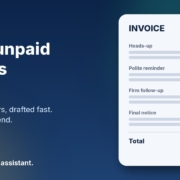
Illustration of an overdue invoice card with a four-stage reminder sequence from heads-up to final notice and a Paid status, next to the headline Chase unpaid invoices with AI

Most small business owners I talk to are great at doing the work and not so great at chasing the money for it. The job is finished, the invoice has gone out, and then it just sits there. You mean to send a reminder, but it feels awkward, you’re busy with the next job, and before you know it the invoice is weeks overdue and your cash flow is feeling it.

Chasing unpaid invoices is one of those jobs that’s perfect for AI. It’s repetitive, it’s mostly writing, and the hard part is getting the tone right, firm without being rude. In this post I’ll show you how to chase unpaid invoices with AI, step by step, using ChatGPT, Claude, Grokbot or any AI assistant you already have. You stay in charge of who gets chased and when. The AI just takes the awkward writing off your plate.

Why invoices slip through the cracks

When I look at how a business handles overdue invoices, the problem is rarely that the owner doesn’t care. It’s usually one of these:

  • Nobody owns it. Following up on payments is “everyone’s job”, which means it’s nobody’s job.
  • It feels awkward. You’ve got a good relationship with the customer and you don’t want to sound pushy.
  • Every reminder starts from a blank page. So it gets put off until there’s time to write it properly.
  • There’s no clear sequence. One customer gets three reminders, another gets none, depending on how busy the week was.

Every one of those is fixable with a simple system and a bit of help from AI.

What AI should and shouldn’t do when chasing payments

Money conversations need care, so it’s worth being clear about the line before you start.

Let AI handle

  • Drafting friendly reminders, firmer follow-ups and final notices in your voice
  • Adjusting the tone for a long-term customer versus a one-off job
  • Summarising your overdue list into “who to chase today”
  • Writing a short phone script for when an email isn’t enough

Keep with you

  • Checking the amounts, dates and invoice numbers against your accounting software
  • Deciding when to offer a payment plan, pause work or escalate
  • Anything that involves legal action or a debt collector
  • The final read-through before anything is sent

The AI drafts. You check and send. Nothing goes to a customer without you seeing it first.

Step 1: Get your payment terms clear

Reminders work best when your terms were clear from the start. If your invoices don’t already show the due date, how to pay and what happens when payment is late, fix that first. The Australian Government’s business.gov.au payments and invoicing guide is a good plain-English place to check what to include on an invoice and how to set your terms.

You can ask your AI assistant to help tidy the wording too. Paste in your current terms and ask: “Rewrite these payment terms so they’re short, clear and friendly for a small business customer. Don’t change any amounts, dates or conditions.”

Step 2: Write your reminder brief once

The secret to getting good results from AI is giving it a clear brief. Write this once, save it somewhere handy, and reuse it every time. Here’s a starting point you can copy and adjust:

You help me write payment reminders for my business, [business name]. We [what you do]. My tone is friendly, direct and professional. Australian English. Keep emails short, under 120 words. Always include the invoice number, amount, original due date and how to pay, exactly as I give them to you. Never change or invent any numbers. Never threaten legal action unless I specifically ask. End with a simple next step for the customer.

That last line matters. A reminder that says “please pay” gets ignored. A reminder that says “you can pay by bank transfer to the details below, or reply if there’s a problem with the invoice” gets a response.

Step 3: Build a simple reminder sequence

Instead of deciding what to do with each invoice from scratch, set up a sequence and ask your AI to draft each stage. A simple one I suggest to clients looks like this:

A few days before the due date: the friendly heads-up

Not a chase at all, just a helpful nudge. “Just a quick reminder that invoice 1042 is due on Friday.” Plenty of late payments are simply forgotten, and this catches them early.

Just after the due date: the polite reminder

Assume it’s an oversight. Restate the details, make paying easy, and invite them to reply if something’s wrong with the invoice.

A couple of weeks overdue: the firmer follow-up

Still polite, but clearer. Mention the earlier reminder, ask for a payment date, and offer to talk if they’re having trouble.

Well overdue: the phone call and final notice

At this point, pick up the phone. Ask your AI for a short call script so you know what you’ll say, then follow up with a final written notice that sets out the next step. If it gets to this stage, it’s worth reading the guidance from the Australian Small Business and Family Enterprise Ombudsman on dealing with late payment and disputes before you decide what to do next.

Your timings will depend on your industry and your terms, so set them to suit you. What matters is that every customer gets the same fair treatment, and nothing relies on you remembering.

Step 4: Draft each reminder in under a minute

Once your brief and sequence are set, chasing an invoice looks like this:

  1. Open your AI assistant and paste in your saved brief.
  2. Add the details: customer name, invoice number, amount, due date, which stage of the sequence they’re at, and anything relevant (“long-term client, always pays eventually” or “first job with us”).
  3. Ask for the draft.
  4. Check every number against your accounting software, tweak anything that doesn’t sound like you, and send it.

For example: “Stage 2 reminder. Customer: Sarah at Coastal Cafe. Invoice 1042, $1,850, due 28 October. Regular customer, very friendly. Pay by bank transfer, details on the invoice.”

You’ll get a short, warm reminder that’s ready to go after a quick check. What used to take fifteen minutes of putting it off now takes one.

Step 5: Make it a weekly habit

The businesses that get paid on time aren’t the ones with the fanciest software. They’re the ones that check their overdue list every week, without fail. Pick a time, say Monday morning, and spend ten minutes on it.

Export or copy your overdue invoice list from your accounting software, paste it into your AI assistant and ask: “Sort this list by how overdue each invoice is, and tell me which stage of my reminder sequence each customer is at.” Then work through the drafts one by one.

Before you paste anything in, think about privacy. Only share what’s needed to draft the message, and check your AI tool’s settings around how your data is stored and used. If you’re working with customer details, the OAIC’s guidance on using commercially available AI products is worth a read.

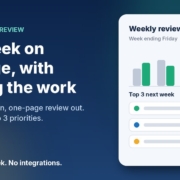
If you want to look at the bigger picture, I’ve written about running a weekly business review with AI, and your overdue invoices fit neatly into that routine. The Australian Government also has practical tips on managing cash flow.

Tips for getting the tone right

  • Assume good intent at first. Most late payers aren’t dodging you. They’ve forgotten, or the invoice went to the wrong person.
  • Make paying easy. Every reminder should include exactly how to pay. The fewer steps, the faster the money arrives.
  • Be specific. “Could you let me know when this will be paid?” gets a better response than “Please pay ASAP.”
  • Keep it short. Long, emotional emails get skimmed. Ask the AI to keep it brief.
  • Stay calm on paper. If you’re frustrated, let the AI write the first draft. It won’t be annoyed, and you can add firmness where it’s needed.

Turning it into an AI agent

Once you’ve used this for a few weeks, you’ll notice it’s the same steps every time. That’s the point where it makes sense to turn it into a simple AI agent: a saved set of instructions that knows your terms, your sequence and your tone, so you just hand it the overdue list and it gives you every draft at once.

That’s exactly what our AI agents pack is built for. It gives you ready-made agents for everyday small business jobs like this, and it works with ChatGPT, Claude, Grokbot or any AI assistant. No new software to learn, and you still approve everything before it goes out.

Frequently asked questions

Is it okay to use AI to write payment reminders?

Yes, as long as you check every message before it’s sent. The AI drafts the wording. You confirm the amounts, dates and tone, and you decide when to send.

Will the reminders sound like a robot wrote them?

Not if you give it a good brief. Tell it your tone, give it a couple of examples of emails you’ve written, and edit the first few drafts. It quickly starts to sound like you.

Can AI send the reminders automatically?

It can be set up to, but I recommend starting with drafts you review and send yourself. Money conversations are personal, and you’ll want to keep a human eye on them, especially at the firmer stages.

What should I do if a customer still won’t pay?

Call them, then send a clear final notice. If that doesn’t work, get proper advice before taking further steps. The Australian Small Business and Family Enterprise Ombudsman is a good place to start.

Do I need special software for this?

No. Your existing accounting software and any AI assistant are enough to get started today.

Want help getting paid faster?

If you’d like to see where AI could save you the most time, from chasing invoices to quotes to admin, book an AI audit and we’ll map it out together. Or, if you’d rather get started yourself, grab the AI agents pack and have your first agent running this week.

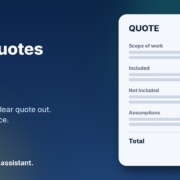
Illustration of a tidy quote document with scope, inclusions, exclusions and assumptions filled in and a highlighted space for your price, next to the headline Write quotes faster with AI

Quotes win jobs. But for most small business owners I talk to, writing them is the job nobody wants to do. You’ve just finished a site visit or a discovery call, you know exactly what the customer needs, and then the quote sits in your head for three days because you’re flat out. By the time it lands in their inbox, they’ve often gone with whoever got back to them first.

The good news is that this is one of the easiest places to start using AI in your business. You don’t need new software, you don’t need to change how you price, and you stay in control of every number. In this post I’ll walk you through how to write quotes faster with AI, step by step, using ChatGPT, Claude, Grokbot or any AI assistant you already have.

Why quotes take so long (and why speed matters)

When I look at how a business actually produces a quote, the slow part is almost never the pricing. It’s everything around it:

  • Turning rough notes into clear scope. Your notes say “bathroom, retile, check plumbing, maybe vanity”. The customer needs to read what’s included and what isn’t.
  • Starting from a blank page. Even with a template, you end up rewriting the intro, the inclusions and the terms every single time.
  • Getting the tone right. You want it to sound professional and friendly, not like a legal document.
  • Remembering the follow-up. Once it’s sent, it’s easy to forget to check in.

Every one of those is a writing task, and writing is exactly what AI assistants are good at. The pricing and judgement stay with you. The words come together much faster.

What AI should and shouldn’t do in your quotes

Before you start, it’s worth being clear about the line. I recommend this split to every business I work with:

Let AI handle

  • Turning your notes or a call transcript into a clean scope of work
  • Writing a short, personal intro that shows you listened
  • Listing inclusions, exclusions and assumptions so there are fewer surprises later
  • Drafting the cover email and a polite follow-up

Keep with you

  • Every price, rate and total. Never let an AI make up a number.
  • Your terms, warranties and anything with legal weight
  • The final read-through before it goes to the customer

Think of the AI as a fast, tidy assistant who drafts the quote while you check it. Nothing goes out until you’ve read it.

Step 1: Capture the job while it’s fresh

The quality of the quote depends on what you give the AI. Straight after the site visit or call, spend two minutes getting the details down. That can be:

  • A voice memo on your phone, transcribed with your phone’s built-in dictation
  • A few dot points typed in the car
  • The transcript or notes from a video call

Don’t worry about making it neat. Include what the customer asked for, anything you noticed, what they care about most (price, timing, quality), and anything you’re not sure about yet. Messy is fine. The AI’s job is to tidy it.

Step 2: Give the AI your quote structure once

The trick to consistent quotes is giving the AI the same structure every time. Here’s a brief you can copy and save:

You help me write quotes for my business, [business name], which does [what you do] in [area]. Using my notes below, write a quote draft with these sections: a two-sentence personal intro that references what the customer told me; a scope of work as clear dot points; what’s included; what’s not included; assumptions I’m making; next steps to accept. Use plain Australian English and a friendly, professional tone. Do not add any prices, rates, dates or guarantees. Leave [PRICE] where a price goes. If anything in my notes is unclear, list your questions at the end instead of guessing.

My notes: [paste notes]

That last instruction matters. Telling the AI to ask questions rather than guess is what keeps the draft accurate.

Step 3: Add your pricing yourself

Once the draft comes back, read through the scope and fill in the prices from your own price list or costing sheet. This is also a good moment to sanity check the scope. If the AI has listed something you didn’t mean to include, take it out. If its questions at the end point to a gap, sort it out with the customer before you send.

If you quote the same kinds of jobs often, you can paste your standard price list into the brief and ask the AI to suggest which line items apply. Just treat that as a suggestion and check every figure against your own numbers.

Step 4: Write the cover email and the follow-up

A good quote deserves a good email. Ask the AI:

Write a short email to [customer name] sending this quote. Thank them for their time, mention the one thing they said mattered most to them, and tell them how to accept or ask questions. Under 120 words. Then write a friendly follow-up email I can send in three days if I haven’t heard back, which isn’t pushy and gives them an easy way to say no.

Save the follow-up as a draft and set a reminder in your calendar or CRM. That one habit alone tends to win back quotes that would otherwise go quiet. If you want more on this, I wrote a full guide on how to follow up leads with AI without being pushy.

Step 5: Build a quote library over time

Every quote you send teaches you something. Keep the ones that won the job in a folder. After a few weeks you’ll have a small library of real examples, and you can paste one into your brief and say “match the style and level of detail of this quote”. Your drafts will start sounding more like you, and you’ll need fewer edits each time.

A quick example

Here’s how this might look for a painter. The notes from the site visit say:

“Sarah, 3 bed weatherboard, exterior only, some flaking on north side, wants it done before Christmas, worried about mess with dog, colour already picked.”

From that, the AI can produce an intro that mentions finishing before Christmas and keeping the yard safe for the dog, a scope that covers prep and repair of the flaking boards, inclusions like protecting garden beds, exclusions like interior work, and an assumption that the colour is already chosen. You add the price and the start date, read it through, and send. What used to be a job for Sunday night becomes a ten-minute task in the van.

When to move from copy and paste to an AI agent

Copy and paste is the right place to start. It’s free, it’s safe and you learn what good looks like. Once you’re doing it every day, it might be time for an AI agent that does more of the legwork for you, such as pulling the notes from your call recordings, filling in your quote template and preparing the follow-up for you to approve.

That’s the idea behind my AI agents pack. They’re ready-made agents for jobs like replying to enquiries, following up leads and keeping your records up to date, and they work with ChatGPT, Claude, Grokbot or any AI assistant. You stay in control and approve anything that goes to a customer.

A note on privacy

Quotes often include customer names, addresses and details about their home or business. Before you paste that into any AI tool, check the tool’s privacy and data settings, and only share what you need to. Many tools let you turn off using your chats for training. If you’re unsure, leave out the customer’s surname and address in the draft and add them in at the end.

Frequently asked questions

Can AI work out my prices for me?

I don’t recommend it. AI can suggest which line items from your own price list might apply, but every number should come from you. An AI that guesses a price can cost you the job or your margin.

Which AI tool is best for writing quotes?

Any of the main assistants will do the job well, including ChatGPT, Claude and Grokbot. The brief you give it matters far more than which tool you pick.

Will customers know the quote was written with AI?

Not if you do it properly. Because the draft starts from your own notes and you edit it before sending, it reads like you on a good day. The personal intro and the details from the visit are what make it feel human.

Do I need to change my quoting software?

No. You can paste the AI’s draft into whatever you use now, whether that’s a Word template, your accounting software or your CRM.

How long does it take to set up?

About fifteen minutes. Write your brief once, save it somewhere handy, and try it on your next quote.

Want help getting quotes out faster?

If you’d like to see where AI could save you the most time, from quotes to follow-ups to admin, book an AI audit and we’ll map it out together. Or, if you’d rather get started yourself, grab the AI agents pack and have your first agent running this week.

Illustration of a CRM contact record card with every field, from what the customer needs to the next step, filled in and ticked, next to the headline Keep your CRM up to date with AI

You paid for a CRM because someone told you it would keep every lead, every client and every deal in one place. And it can. The catch is that it only knows what somebody types into it. After a long day on calls, in meetings or on the tools, nobody feels like writing up notes, updating the deal stage and setting a follow-up task. So the CRM slowly turns into a very expensive contact list with half the details missing.

The usual reaction is to blame the software and start shopping for a new one. In my experience that’s rarely the real problem. The problem is that nothing is feeding the CRM you already have.

In this post I’ll show you how to use AI to keep your CRM up to date without switching systems: turning messy call notes into clean records, catching leads that have gone quiet, and keeping deal stages honest. You can start today with copy and paste in ChatGPT, Claude, Grokbot or any AI assistant, then automate more once you trust it.

Why your CRM is always out of date

When I sit down with small business owners and open up their CRM, I usually see the same patterns:

  • Blank or half-filled contact records. A name and a phone number, but no notes on what they wanted, what was quoted or what happens next.
  • Deals stuck in the wrong stage. A job that was won three weeks ago is still sitting in “Quote sent”, so the pipeline tells you nothing useful.
  • No next step. Leads with no follow-up task, so they only get chased if someone happens to remember.
  • Notes living everywhere else. The real detail is in someone’s notebook, a text thread or their head.

None of this is laziness. Data entry is boring, it happens at the worst possible time (straight after a call, when the next one is already ringing), and nobody sees the benefit until months later. That’s exactly the kind of work AI is good at taking off your plate.

Why switching CRMs usually doesn’t fix it

Moving to a new CRM feels like a fresh start. But you’d be spending weeks migrating data, rebuilding pipelines and retraining the team, and the new system would still rely on the same people typing in the same notes at the end of the same busy days. Six months later you’re back where you started, just with a different logo on the screen.

The better question isn’t “which CRM should we use?” It’s “what is going to keep our CRM updated?” That’s where an AI assistant, and later an AI agent, comes in.

What AI can do for your CRM

Think of AI as the admin person who sits next to your CRM and does the typing. There are three jobs it does well.

1. Turn messy notes into clean records

After a call, you jot down a few rough lines or record a quick voice memo. The AI turns that into a tidy summary with the fields your CRM actually uses: what they need, budget if mentioned, timeframe, decision maker, objections, and the agreed next step with a date. You paste it straight into the contact or deal.

2. Catch the leads that have gone quiet

Once a week, export your open leads or deals (most CRMs let you export a list to a spreadsheet) and ask the AI to flag anything with no activity for a set number of days or no next step booked. You get a short list of who to chase, plus a suggested follow-up message for each one.

3. Keep deal stages honest

Give the AI the same export and your stage definitions, and ask it to point out deals that look like they’re in the wrong stage based on the notes. A deal with a signed quote in the notes but still marked “Contacted” gets flagged for you to fix.

Notice that in all three jobs the AI suggests and you decide. It doesn’t need a login to your CRM to be useful on day one.

How to set it up this week (no integrations)

Here’s the simplest way to start. It takes about half an hour to set up and a few minutes a day after that.

Step 1: Write down what a “complete” record looks like

Open your CRM and list the fields that actually matter to your business. For most small businesses it’s something like: contact details, source (how they found you), what they need, value of the job, stage, last contact date, and next step with a date. Keep it short. If a field never gets used, leave it out.

Step 2: Give your AI assistant a standing brief

Most AI assistants let you save instructions in a project, custom GPT or similar. Paste in something like this and adjust it to suit:

You help me keep my CRM up to date. When I paste in rough notes from a call, email or meeting, turn them into a CRM update with these fields: Contact, Source, What they need, Estimated value, Stage, Last contact date, Next step and date, Notes (three lines max). Only use information in my notes. If something isn’t mentioned, write “not provided”. Never guess numbers or dates. Finish with one line suggesting the next action if I haven’t given one.

The “only use information in my notes” line matters. Without it, AI tools can fill gaps with confident-sounding guesses, and a CRM full of made-up details is worse than a blank one.

Step 3: Use it straight after every call

Make it a habit: hang up, paste your rough notes or a voice-to-text transcript into the assistant, copy the result into the CRM. It’s thirty seconds of work instead of five minutes of typing, which is the difference between it happening and not happening.

Step 4: Run a weekly pipeline check

Once a week, export your open deals and paste them in with a prompt like:

Here are my open deals. List any with no activity in the last 7 days or no next step booked, and any that look like they’re in the wrong stage based on the notes. For each one, give me a one-line reason and a short, friendly follow-up message I could send. Don’t invent any details that aren’t in the data.

Work through the list, update the CRM and send the follow-ups you’re happy with. If you want help writing follow-ups that don’t sound pushy, I covered that in how to follow up leads with AI.

When to move from copy-paste to an AI agent

Copy and paste is the right place to start because you get to see exactly what the AI produces and fix the brief before anything runs on its own. Once you trust the output, the next step is an AI agent that does the same jobs without you in the middle: picking up new enquiries, writing the notes into the record, setting the follow-up task and flagging stale deals each week.

Whether that’s possible depends on your CRM and your AI tools. Many CRMs have an API or built-in automation, and some AI assistants can connect to other apps. That’s the part worth getting right with someone who has done it before, because a badly set up agent can create a mess in your data just as fast as it fixes one. My advice: automate one job at a time, starting with the one you hate most, and keep a human check on anything that goes out to a customer.

Keep customer data safe

Your CRM is full of personal information, so treat it carefully when you bring AI into the picture.

  • Check your AI tool’s data settings. Use a business plan where possible and turn off any option that lets the provider train on your data. The OAIC has practical guidance on privacy and the use of commercially available AI products that’s worth a read, and it recommends not entering personal information into publicly available AI tools where you can avoid it.
  • Share only what’s needed. For a pipeline check, the AI rarely needs phone numbers or home addresses. Remove columns you don’t need before you paste.
  • Accuracy is part of the job. Under the Australian Privacy Principles, businesses covered by the Privacy Act need to take reasonable steps to keep the personal information they hold accurate, up to date and complete (see the OAIC’s APP quick reference, APP 10). A tidy, current CRM helps with that, as long as the AI isn’t guessing.

Common mistakes to avoid

  • Letting the AI guess. If a budget or date wasn’t mentioned, it should say so. Check the first few weeks of updates closely.
  • Tracking too many fields. Ten fields nobody fills in are worse than five that are always right.
  • Automating before the habit exists. Get the copy-paste routine working first. An agent built on a process nobody follows just automates the chaos.
  • Sending follow-ups without reading them. The AI drafts, you decide. Your name is on the message.

Frequently asked questions

Do I need to switch CRMs to use AI?

No. This approach works with the CRM you already have, whether that’s HubSpot, GoHighLevel or something else. You start with copy and paste, so it doesn’t matter which system you use.

Which AI tool should I use?

Whichever one you already use. The briefs above work in ChatGPT, Claude, Grokbot or any AI assistant. A clear brief and honest notes matter more than the brand of tool.

How long does it take each day?

About thirty seconds after each call to paste in your notes and copy the update back, plus fifteen minutes or so for the weekly pipeline check. Setting up the brief takes around half an hour.

Can AI update my CRM automatically?

Often, yes, but it depends on your CRM and your tools. Start manually so you can check the output, then automate one job at a time once you trust it.

Is it safe to put customer details into AI?

Share only what’s needed, use a business plan with training on your data turned off, and follow the OAIC’s guidance on commercially available AI products. If in doubt, remove names and contact details before pasting.

Want AI agents working on your CRM?

I set up AI agents that sit on top of the CRM you already pay for, handling the notes, follow-ups and pipeline updates so your team can get back to selling. No migration.

See how it works

Want to try it yourself first? Grab my free Steal My AI Agents pack, which works with ChatGPT, Claude, Grokbot or any AI assistant. Or book a free AI audit.

Illustration of a one-page weekly business review card with a bar chart comparing this week and last week and a list of next week's top three priorities, next to the headline Your week on one page, with AI doing the work

It’s Friday afternoon. You’ve been flat out all week, the phone hasn’t stopped, and if someone asked you how the business actually went this week, you’d probably say “busy”. But busy doing what? How many enquiries came in? How many turned into jobs? Which quotes are still sitting there with no reply? And what’s the one thing that would make next week better?

Most small business owners never stop long enough to answer those questions. Not because they don’t care, but because there’s no time, and pulling it all together feels like a job in itself.

In this post I’ll show you how to set up a simple weekly business review with AI: you spend ten minutes on a Friday pasting in your numbers and notes, and your AI assistant turns them into a one-page report with next week’s top three priorities. Then on Monday it turns that report into a plan. It works with ChatGPT, Claude, Grokbot or any AI assistant, and you don’t need to connect anything to get started.

Why owners never get time to work on the business

When I talk to small business owners about where AI can help, a weekly review rarely comes up first. Lead replies and follow-ups get the attention because the pain is obvious. But underneath a lot of those problems is the same thing: nobody’s stepping back to look at the whole week.

Here’s what that usually looks like:

  • You run on gut feel. You know roughly how things are going, but you couldn’t tell me whether this week was better or worse than last week.
  • Things slip quietly. A quote doesn’t get followed up, a to-do gets carried over three weeks in a row, and nobody notices until it’s a problem.
  • Reviews feel like homework. Sitting down with a blank page and a spreadsheet at the end of a long week is the last thing anyone wants to do.

That last one is where AI genuinely helps. You still provide the facts. The AI does the boring part: organising them, spotting what’s stuck, and writing it up in a format you can read in two minutes.

What an AI weekly business review actually does

The Weekly Business Review agent in my free AI agents pack is one of the simplest in the pack, and it needs no integrations at all. Each week it:

  1. Takes what you paste in on Friday: your handful of weekly numbers, the enquiries that came in, your to-do list, and anything else that happened.
  2. Writes a one-page review with the same headings every week, so you can compare one week with the next.
  3. Calls out what’s stuck, such as leads that haven’t been followed up or to-dos that keep getting carried over.
  4. Picks next week’s top three priorities, each with a small first step.
  5. Turns it into a plan on Monday, with no more than three must-dos per day.

The one-page review format

Here are the headings I use:

  1. The week in one line
  2. Numbers: this week vs last week (and against your targets, if you have them)
  3. What went well (no more than three points)
  4. What’s stuck or slipping (no more than three points)
  5. Next week’s top three priorities, each with a first step
  6. One thing to stop doing or hand off

That’s it. If it doesn’t fit on one page, it’s too long, and you won’t read it.

The most important rule: no made-up numbers

AI assistants are very good at sounding confident, and that’s a risk when you’re dealing with figures. If you forget to give it last week’s invoicing total, a badly briefed assistant might fill the gap with a guess. So the brief needs one firm rule: only use the numbers I give you, never estimate, and if something’s missing, write “not provided”. A review built on invented numbers is worse than no review at all.

How to set it up in about 30 minutes

Step 1: Pick three to six weekly numbers

Don’t try to track everything. Choose a few numbers that tell you whether the week went well, and that you can find in a couple of minutes. For a service business that might be new enquiries, quotes sent, jobs booked and money invoiced. A clinic might track appointments booked, cancellations and new clients. If you’re not sure, ask your AI assistant to interview you about how you win customers and get paid, one question at a time, and recommend the numbers and where you’d find each one.

Step 2: Start a simple weekly numbers note

Keep one line per week in a note or spreadsheet, copied from wherever the figures live: your invoicing software, booking system or inbox. This becomes your “last week” comparison, and after a couple of months you’ll have a picture of your business you’ve probably never had before.

Step 3: Give your AI assistant a clear brief

Set up a project, custom assistant or saved note in ChatGPT, Claude, Grokbot or any AI assistant, and paste in a brief like this, filled in with your details:

You are the weekly business reviewer for [business name], a [type of business] in [area]. Each Friday I’ll paste in this week’s numbers ([your numbers]), enquiries, to-do list and anything else that happened. Turn it into a one-page Weekly Business Review with these headings: 1. The week in one line. 2. Numbers: this week vs last week. Only use numbers I give you. Never invent or estimate. If something’s missing, write “not provided”. 3. What went well (max 3 points). 4. What’s stuck or slipping (max 3 points), including leads not followed up and to-dos carried over more than once. 5. Next week’s top 3 priorities, each with a small first step. 6. One thing to stop doing or hand off. Plain Australian English, direct and encouraging, no waffle. It must fit on one page.

If your assistant doesn’t remember past chats, paste last week’s report in too, so it can compare.

Step 4: Friday, run the review

Set a reminder for Friday afternoon. When it goes off, paste in the week: your numbers, a quick list of enquiries (name, what they wanted, where it’s at), your to-do list marked done or not done, and any wins or problems. Read the review, fix anything that’s off, and save it in a “Weekly reviews” folder.

Step 5: Monday, set the plan

On Monday morning, paste Friday’s report plus anything new since then, and ask for your plan for the week: the top three priorities with a first step and a time for each, no more than three must-dos per day, and anything to delegate, delay or drop. Then block out time in your calendar for the top three before the week takes over.

What to feed it each Friday

The review is only as good as what you give it. You don’t need to be thorough, just honest. A Friday paste-in might look something like this (example figures only):

Numbers: Enquiries 9, quotes sent 5, jobs booked 3, invoiced $6,400.
Enquiries: Sam, bathroom quote, waiting on reply. Jo, ongoing maintenance, booked. Alex, price check, no reply yet.
To-dos: Update price list (not done, third week). Chase two overdue invoices (done).
Anything else: Lost a day to a supplier delay. Two great Google reviews.

From that, a good review will tell you that the price list has now slipped three weeks and should either get done or get dropped, that Alex hasn’t heard back, and that Sam’s quote needs a follow-up before the weekend.

Keep an eye on cash flow and privacy

If money in and money out isn’t one of your weekly numbers, I’d think about adding it. business.gov.au’s cash flow section has a free cash flow statement template and a guide to managing cash flow, and a weekly review is a natural place to check it. The AI won’t do your bookkeeping, but it will notice when overdue invoices keep showing up in your notes.

Be sensible about what you paste in, too. The Office of the Australian Information Commissioner’s guidance on privacy and the use of commercially available AI products recommends caution about putting personal information, especially sensitive information, into publicly available AI tools. For a weekly review you rarely need it: first names and a few words about the job are plenty. Use a business account of your AI assistant and check its data settings. This isn’t legal advice, so if you handle health or other sensitive information, check what applies to you.

What a weekly review gets you

The obvious win is clarity. In ten minutes on a Friday you know how the week went, what’s slipping and what matters next. The less obvious win is consistency: the same six headings every week make patterns easy to spot, like a number that’s drifting down, or the same task that never gets done.

Frequently asked questions

Do I need to connect my accounting or booking software?

No. This agent works fine with copy and paste. You copy a few numbers from wherever they live into your weekly note, then paste the week into your AI assistant. If your assistant can connect to your other tools you can automate more later, but it isn’t needed.

How long does the weekly review take?

Once it’s set up, around ten minutes on a Friday to gather and paste in your notes, and a few minutes on Monday to set the plan. The first setup takes about half an hour.

What if I don’t know which numbers to track?

Ask your AI assistant to interview you about how you win customers and get paid, then recommend three to six numbers and where to find each one. Start small. You can always change them later.

Can the AI get my numbers wrong?

It can if you let it guess. Tell it to only use the numbers you give it, never estimate, and write “not provided” for anything missing. Always check the numbers section before you rely on the review.

Which AI tool should I use?

Whichever one you already use. The brief above works in ChatGPT, Claude, Grokbot or any AI assistant. A consistent format and honest notes matter far more than the brand of tool.

Get my AI agents (free)

My free Steal My AI Agents pack includes the Weekly Business Review agent, plus agents for instant lead replies, follow-ups, reviews, client onboarding and inbox triage, with the prompts, setup steps and routines. It works with ChatGPT, Claude, Grokbot or any AI assistant. No code needed.

Send me the agents

Rather have it set up for you? Book a free AI audit.