You open your inbox at 7 pm after a full day on the tools or with clients, and there are 63 unread emails. Somewhere in there is a new enquiry worth a few thousand dollars, a client asking a quick question, and an invoice that needs paying. So you skim, reply to the easy ones, and tell yourself you’ll deal with the rest tomorrow.
That’s how good leads go cold and small questions turn into annoyed clients. Not because you don’t care, but because email treats everything as equally urgent, and it isn’t.
In this post I’ll show you how to set up a simple inbox triage agent for a small business: one that sorts your email into a short list of what matters, drafts replies for the routine stuff, and flags anything risky for you to check. You can run it with ChatGPT, Claude, Grokbot or any AI assistant, and nothing gets sent without you.
Why your inbox feels like a second job
When I sit down with small business owners and look at their email, the same few problems keep coming up:
- Everything looks the same. A new customer enquiry sits in the same list, in the same font, as a software update notice.
- The important emails get buried. If you don’t reply to an enquiry while you’re looking at it, it slides down the page and out of mind.
- Replies take longer than they should. Most emails need a two-line answer you’ve written a hundred times before, but you still start from a blank screen.
- Nobody else can help. The inbox lives in your head, so there’s no easy way to hand part of it to a staff member.
You don’t need a fancy new email app to fix this. You need a clear set of categories, a few example replies, and something that does the first pass for you.
What an AI inbox triage agent actually does
The inbox triage agent in my free AI agents pack does four things:
- Sorts each new email into a category, such as new enquiry, existing client, money in or out, admin, and can wait.
- Gives you a short summary of what’s in your inbox: who needs a reply, what they want, and how urgent it is.
- Drafts replies for the routine emails, in your voice, ready for you to check and send.
- Flags anything unusual, like a request to change bank details or an urgent payment demand, so you look at it properly before acting.
The result is that you open your inbox to a short list instead of a long one. You still make every decision. You just stop spending your evenings working out which decisions need making.
Start with five categories, not fifty
The biggest mistake people make with email sorting is creating too many folders. Keep it simple. For most service businesses these five are plenty:
- New enquiry: someone who isn’t a customer yet, asking about your services. These come first, every time.
- Client: an existing customer with a question, a change or a problem.
- Money: invoices, payment requests, remittances and anything mentioning bank details.
- Admin: suppliers, bookings, internal stuff that needs a reply but isn’t urgent.
- Can wait: newsletters, receipts, notifications and promotions.
If you can’t decide where an email belongs, that’s fine. Ask the AI to put it in a “check me” pile, and you’ll look at it yourself.
The daily summary
Instead of scrolling, you get something like this each morning and afternoon:
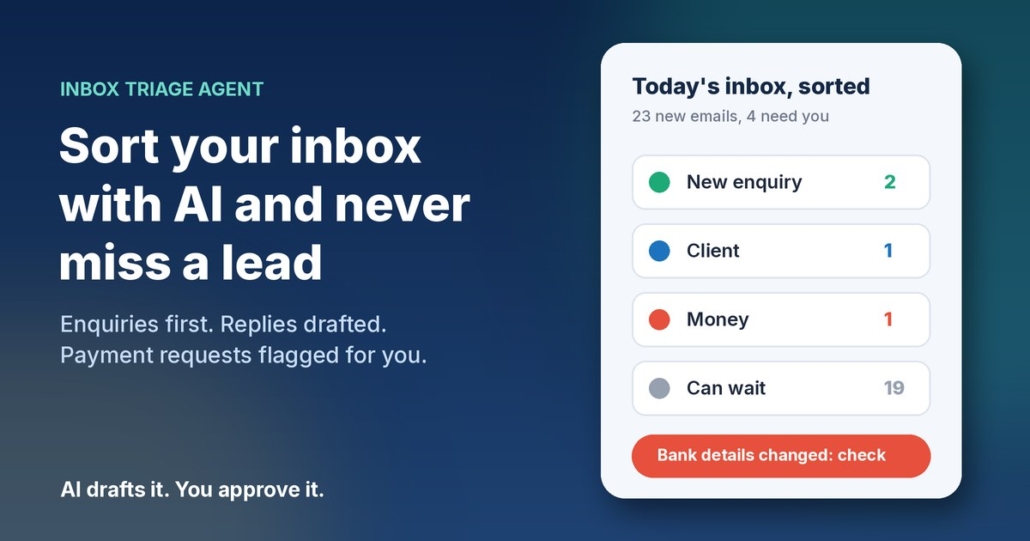
New enquiries (2): Sam wants a quote for a bathroom renovation in Wynnum, asking about availability in December. Reply drafted. Jo asked whether you service the Sunshine Coast. Reply drafted.
Clients (1): Alex asked to move Thursday’s appointment to Friday morning. Reply drafted, check your calendar.
Money (1): A supplier email says their bank details have changed. Flagged: call them on a number you already have before paying.
Can wait (18): newsletters and notifications.
Those names and details are just an example, but you get the idea. Five minutes with that summary and you know exactly where your attention needs to go.
How to set it up in about 30 minutes
Step 1: Write your categories and rules
Take the five categories above and adjust them to suit your business. Then write one sentence for each explaining what belongs there. For example: “New enquiry: anyone who isn’t already a client asking about prices, availability or whether we can help.” Clear rules are what make the sorting accurate.
Step 2: Collect five example replies
Look through your sent folder and find replies you’re happy with: answering a price question, confirming a booking, saying you don’t service an area, rescheduling an appointment, and following up on a quote. These teach the AI how you actually write.
Step 3: Give your AI assistant a clear brief
Open ChatGPT, Claude, Grokbot or any AI assistant and paste in a brief like this, filled in with your details:
You are the inbox assistant for [business name], a [type of business] in [area]. For each email I give you: 1. Put it in one category: New enquiry, Client, Money, Admin or Can wait, using these rules: [your rules]. 2. Summarise it in one sentence. 3. For New enquiry, Client and Admin emails, draft a reply of no more than 100 words in Australian English that sounds like these examples: [your example replies]. 4. If an email asks for a payment, mentions new or changed bank details, or pushes for urgent action, label it FLAG and don’t draft a reply. Never promise prices, dates or anything I haven’t told you. If you’re not sure, say so.
Step 4: Run it, check it, send it
To start with, paste in your unread emails (or connect your email if your AI assistant supports it) and ask for the sort and summary. Read every draft before it goes anywhere. Fix anything that doesn’t sound like you, and tell the assistant what you changed, so the next drafts get closer.
Step 5: Put it on a schedule once you trust it
After a week or two of checking its work, set it to run at the same times each day, say 8 am and 3 pm, and leave the drafts waiting in your email for you to approve. The pack walks you through setting up these scheduled routines. Keep the “you approve every reply” rule, at least for new enquiries and anything to do with money.
Let the AI flag scams, not pay invoices
This is the part I’d ask you not to skip. Fake invoices and “we’ve changed our bank details” emails are one of the most common ways small businesses lose money.
The Australian Signals Directorate’s guide to protecting against business email compromise lists the warning signs to watch for, including an unexpected change of bank details, an urgent payment request, and an email address that doesn’t quite match the supplier’s name. Scamwatch’s page on business email compromise scams gives the same advice: stop and check any change to payee details, and contact the business on a phone number you’ve found yourself, not one in the email.
An AI assistant is good at spotting those patterns and putting a big flag on them. It is not the right tool to decide whether a payment request is genuine. So the rule in your brief should be simple: anything involving money or bank details gets flagged for a human, and a human checks it by phone before anything is paid.
Keep your clients’ information safe
Your inbox is full of personal information: names, phone numbers, addresses, and sometimes health or financial details. The Office of the Australian Information Commissioner’s guidance on privacy and the use of commercially available AI products recommends being cautious about putting personal information, especially sensitive information, into publicly available AI tools.
A few practical habits help:
- Use a business account of your AI assistant, and check its settings for whether your data is used for training.
- Keep sensitive emails out of it. If you run a clinic or handle financial records, set a rule that those emails go straight to you and are never pasted into the AI.
- Only share what’s needed. A first name and the question is usually enough to draft a reply.
This isn’t legal advice. If you handle health, financial or other sensitive information, check what applies to you with someone qualified.
What a sorted inbox gets you
The obvious win is time back in your evenings. The bigger one is that new enquiries stop getting lost. When they’re always at the top of a short list with a reply already drafted, you answer them the same day, which is often the difference between winning the job and the customer going with whoever replied first.
It also makes your inbox something you can share. Once the categories and rules are written down, a staff member can handle the “Admin” pile while you handle enquiries, and everyone knows what goes where.
Frequently asked questions
Can AI read and sort my emails automatically?
Yes, many AI assistants can connect to Gmail or Outlook and sort or summarise new emails on a schedule. You can also start without connecting anything by pasting emails in and asking for a sort and summary.
Will the AI send replies without me knowing?
Only if you set it up that way, and I’d recommend you don’t. Have it save replies as drafts so you read and send each one. That keeps you in control of what goes out in your name.
What if it puts an email in the wrong category?
It will sometimes, especially at the start. Tell it what it got wrong and tighten the rule for that category. Adding a “check me” pile for anything it’s unsure about catches most of these.
Is it safe to use AI on my business email?
It can be, with care. Use a business account, keep sensitive emails out of it, and never let it approve payments. The OAIC recommends caution about putting personal information into publicly available AI tools.
Which AI tool should I use?
Whichever one you already use. The brief above works in ChatGPT, Claude, Grokbot or any AI assistant. Clear categories and good example replies matter far more than the brand of tool.
Get my AI agents (free)
My free Steal My AI Agents pack includes the inbox triage agent, plus agents for instant lead replies, follow-ups, reviews, client onboarding and a weekly business review, with the prompts, setup steps and routines. It works with ChatGPT, Claude, Grokbot or any AI assistant. No code needed.
Rather have it set up for you? Book a free AI audit.