
Posts

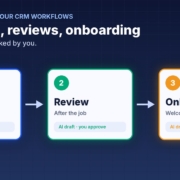
GoHighLevel AI automation illustration: a simple three-step workflow diagram with Follow-up, Review and Onboard nodes joined by arrows, each labelled AI draft, you approve

A lot of small businesses I talk to are paying for GoHighLevel every month and using a fraction of it. The pipeline is there, the calendars are there, the workflow builder is there. But the follow-up sequences never got written, the review requests go out when someone remembers, and new clients still get a welcome email typed from scratch.

That’s not a software problem. It’s a writing and setup problem, and that’s exactly where AI helps. In this post I’ll walk you through why GHL accounts stay half set up, then three jobs you can hand to AI first: follow-up sequences, review requests after the job, and a client onboarding checklist. Then I’ll show you how to test it all before you switch anything on.

Quick note: I’m independent and not affiliated with or endorsed by HighLevel. GoHighLevel and HighLevel are trademarks of their owner.

Why GoHighLevel accounts stay half set up

GoHighLevel can do a lot. That’s the selling point, and it’s also the problem. When a tool can do everything, someone has to decide what it should do for your business, write the words, build the steps and keep them up to date. In most small businesses, that someone is the owner, and the owner is busy running the business.

Here’s what I usually see when I open up an account:

  • Empty or default workflows. The account was set up by an agency or a course template, and nobody has touched the workflows since.
  • Generic messages. The follow-up texts that do exist were written for “any business”, so they don’t sound like you and customers can tell.
  • Stages nobody uses. The pipeline has stages, but jobs don’t get moved, so any automation tied to those stages never fires.
  • Fear of breaking something. Owners worry that if they switch a workflow on, it’ll spam their customer list. So they leave it off.

The good news: the hardest part of all of this is the writing and the thinking, and AI is very good at both. You can get the words and the logic drafted in an afternoon, then put them into GHL piece by piece.

HighLevel has its own AI too

It’s worth knowing what’s already built in. HighLevel’s support portal describes a Workflow AI Builder that turns a plain-language prompt into a workflow you then review and refine, and Conversation AI bots that can collect lead details, answer common questions and help with booking. HighLevel’s own guide says generated workflows need a manual review before you publish them, which is good advice for any AI setup. Features and pricing depend on your plan, so check your account before you rely on them.

Whether you use HighLevel’s built-in AI or an outside assistant like ChatGPT, Claude or Grokbot, the same rule applies: you still need to know what you want it to say and when. That’s what the rest of this post is about.

Job 1: AI-written follow-up sequences

Most quotes and enquiries that go cold weren’t lost. Nobody followed up. A follow-up sequence in GHL fixes that, but only if the messages are good enough that you’re happy for them to go out.

Decide the cadence first

Keep it simple. A day 1, day 3 and day 7 rhythm works for a lot of service businesses: a quick check-in, a helpful nudge, then a polite last message that makes it easy to say no. Write down when the sequence should stop, for example as soon as the person replies, books, or says they’ve gone elsewhere.

Get AI to draft the messages in your voice

Give your AI assistant three or four real messages you’ve sent before, a short description of your business and your service area, and the cadence. Ask it to write each message for SMS and email, short and friendly, with one clear next step. Then edit them until they sound like you. I cover the tone side in more detail in my post on how to follow up leads with AI without being pushy.

Personalise with the fields you already have

GHL lets you insert contact fields into messages. Ask the AI to use the ones you actually fill in, such as first name, service type and suburb. A follow-up that mentions “the bathroom quote in Ashgrove” lands very differently to “your recent enquiry”. (That’s an example, not a real customer.)

Job 2: Review requests after the job

Happy customers rarely leave a review unless you ask, and asking feels awkward. A simple automated request, sent at the right moment, takes the awkwardness out of it.

Trigger it on the win

Tie the request to a clear moment, such as a job being marked complete or an invoice being paid. If your pipeline stages aren’t kept up to date, fix that first, or the request will go out at the wrong time or not at all.

Write a short, personal ask

Ask the AI for a two or three line message that thanks the customer for something specific, then gives them the link. No pressure, no incentives, no long story. Ask for a second version for the reminder a few days later, and stop after that.

Ask everyone, not just the happy ones

Don’t set up a workflow that only sends the review link to people who rate you highly and sends everyone else somewhere else. That’s called review gating and it goes against Google’s review policies. Ask every customer, and handle any complaints that come back as a person, not a bot. My post on getting more Google reviews with AI goes through this step by step.

Job 3: A client onboarding checklist

When a deal is won, the next few days set the tone for the whole relationship. If onboarding happens in your head, things get missed: the access you needed, the forms they never filled in, the kick-off call nobody booked.

Write the checklist once

Tell your AI assistant what happens after someone says yes in your business, even in rough dot points. Ask it to turn that into a clean checklist with three parts: what the client needs to send you, what your team needs to do, and when each step should happen. You only have to do this once.

Turn it into messages and tasks

From that checklist, get the AI to draft the welcome email, a short reminder for anything the client hasn’t sent yet, and the internal tasks for your team. In GHL, these can hang off the “won” stage: the welcome goes out, tasks are created and assigned, and a reminder follows if a form is still missing. For more on this, see how to onboard new clients with AI.

Test everything before you switch it on

This is the step most people skip, and it’s the one that stops the “what if it spams everyone” fear from coming true.

Use a test contact

Create a contact with your own mobile and email, and run them through every workflow. Read every message as if you were the customer. Check the timing, the personalisation fields and the links.

Check the stop rules

Reply to a follow-up as your test contact and make sure the sequence stops. Move the test deal to won and check the follow-up ends and onboarding starts. These are the bits that cause the most embarrassment when they’re wrong.

Start small

Switch on one workflow for new contacts only, not your whole list. Watch it for a week. Look at what went out, what people replied and anything that looked off, then fix the wording or the logic before you add the next one.

Keep a person in the loop for the tricky stuff

Decide what must always go to a human: pricing questions, complaints, anything legal or sensitive. If you’re unsure about the data side, my post on whether AI is safe for small business covers what to check.

What to do this week

  1. Pick one job. Follow-up, reviews or onboarding. Choose the one that costs you the most work today.
  2. Write your rules in plain English. Your services, area, tone, cadence and what always goes to a person.
  3. Get AI to draft the messages. Use your own past messages as examples, then edit until they sound like you.
  4. Build it in GHL and test it on yourself. One workflow, one test contact, every message read end to end.
  5. Switch it on for new contacts only. Review after a week, then add the next job.

If you’d rather start with the instructions already written, the free CRM agent pack for GoHighLevel gives you AI agents for lead replies, follow-ups and pipeline updates. They’re plain-English instructions that work with ChatGPT, Claude, Grokbot or any AI assistant, so there’s nothing to install.

FAQ

Do I need to know how to build workflows to use AI with GoHighLevel?

No. AI can draft the messages and describe the steps in plain English, and HighLevel’s own Workflow AI Builder can turn a prompt into a workflow. You still need to review every step and test it before you switch it on.

Will AI send messages to my customers without me checking?

Only if you set it up that way. Start by testing every workflow on your own contact, switch it on for new contacts only, and keep pricing, complaints and anything sensitive with a person.

Can I only send review requests to happy customers?

No. Filtering out unhappy customers before asking for a review is called review gating and goes against Google’s review policies. Ask every customer and handle complaints personally.

Should I use HighLevel’s built-in AI or ChatGPT, Claude or Grokbot?

Either can work. Many businesses draft messages and checklists in their usual AI assistant, then build them in GHL. Check what your HighLevel plan includes before relying on its built-in AI features.

What’s the best first job to automate in GoHighLevel?

Whichever one loses you the most work today. For many service businesses that’s quote follow-up, because the leads are already in the pipeline and just need a nudge.

Make GoHighLevel finally run itself

Grab the free CRM agent pack: AI agents for lead replies, follow-ups and pipeline updates, with no weekend workflow building. Prefer a hand? Book a free 15-minute AI workflow audit and we’ll find your first quick win.

Get the free CRM agent pack or book a free AI audit

Independent AI agents. Not affiliated with or endorsed by HighLevel.
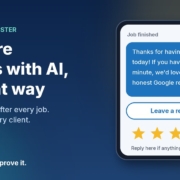
Illustration of a phone showing a thank-you text asking for an honest Google review, with a Leave a review button and five stars, next to the headline Get more reviews with AI, the right way

You finish a job, the client is happy, they say “we’ll leave you a review” and mean it. Then their week gets busy and the review never happens. Meanwhile the one client who had a bad day finds the time to write three paragraphs.

That’s not because your happy clients don’t care. It’s because nobody asked them at the right moment, in a way that took ten seconds. Asking for reviews is a small, repetitive job that’s easy to forget, which makes it a good fit for an AI assistant.

In this post I’ll show you a simple review request setup for a small business: one friendly message after every finished job, written with the AI assistant you already use, sent to every client, and set up in a way that keeps you on the right side of Google’s rules and Australian consumer law.

Why happy clients don’t leave reviews

When I talk to business owners about reviews, the same few problems come up:

  • Nobody asks. You meant to send a message once the invoice went out, then the next job started.
  • The ask comes too late. A week later the client has moved on and the job isn’t front of mind any more.
  • It’s too much effort for them. “Search for us on Google and leave a review” is three steps too many. A direct link is one tap.
  • The message feels awkward to write. So you put it off, or you send the same stiff template to everyone.

An AI review requester solves the timing and writing problems. Your Google review link solves the effort problem. Together they turn “we should ask for reviews” into something that just happens after every job.

First, the rules: ask everyone, the same way

Before we build anything, there’s one trap to avoid, because a lot of review tools fall straight into it.

A common trick is to ask clients for a rating first, then only send the Google review link to the people who score you 4 or 5 and quietly send everyone else to a private feedback form. It’s often called “review gating”, and it’s not allowed.

Google’s Maps user-generated content policy says merchants must not “discourage or prohibit negative reviews, or selectively solicit positive reviews from customers”. It also bans offering incentives such as payment, discounts or free services in exchange for a review. Google can remove reviews and restrict a Business Profile that breaks these rules.

In Australia, the ACCC says the same thing in its own way. Its page on online reviews for products and services explains that reviews should reflect people’s genuine opinions, and that any incentive for a review has to apply whether the review is positive or negative and be clearly disclosed. In its True Value Solar media release, the ACCC described a business that offered a free service only to customers who’d had a positive experience, and the program was discontinued after the ACCC investigated.

So the setup in this post follows three simple rules:

  1. Every finished job gets the same request, with the review link, whether you think they loved it or not.
  2. No incentives. No discounts, prizes or freebies for reviews.
  3. You never tell people what to write or what rating to give.

You can still invite private feedback. You just offer it alongside the review link, not instead of it. This isn’t legal advice, so if you’re unsure about anything in your industry, check with someone qualified.

What an AI review requester actually does

For a small business, the agent has three jobs:

  1. Notices a finished job. That might be an invoice marked paid, a job closed in your job app, or a row you tick off in a spreadsheet.
  2. Drafts a short, personal thank-you that mentions the actual job and includes your Google review link.
  3. Flags replies for you. If someone replies with a problem, you see it and deal with it yourself, as a person.

That’s it. One message per job, with an optional gentle reminder a few days later if they haven’t reviewed and haven’t replied. No chasing beyond that.

The message: thank them, then ask

Keep it to two or three lines, and send it the same day or the day after the job, while it’s fresh. Something like:

Hi Sarah, it’s Mike from Example Plumbing. Thanks for having us out to fix the hot water system today. If you’ve got a minute, we’d really appreciate an honest Google review: [link]. And if anything wasn’t right, just reply here and I’ll sort it out.

Notice what that message does. It thanks them for something specific, it asks for an honest review, it gives them a one-tap link, and it offers a direct line if something went wrong. Everyone gets exactly the same offer.

The reminder: one nudge, then stop

If there’s no review and no reply after about five days, one short reminder is fine:

Hi Sarah, just a quick one in case my last message got buried. Here’s that review link if you’d like to share how we went: [link]. No worries either way, and thanks again.

After that, leave it. Two messages is helpful. Five is annoying.

How to set it up in about 20 minutes

Step 1: Get your Google review link

In your Google Business Profile, look for the option to ask for reviews. Google’s tips to get more reviews explain how to create a link or QR code that takes customers straight to the review form. Save that link somewhere handy.

Step 2: Make a simple finished-jobs list

A spreadsheet is enough. Columns for the client’s name, their phone or email, what the job was, the date it finished, and whether the request and reminder have been sent. If your job or invoicing app already tracks finished jobs, use that instead.

Step 3: Give your AI assistant a clear brief

Open ChatGPT, Claude, Grokbot or any AI assistant and paste in a brief like this, filled in with your details:

You write review request messages for [business name], a [type of business] in [area]. I’ll give you a client’s first name and the job we did. Write a two- or three-line SMS from [your name] that thanks them for the specific job, asks for an honest Google review with this link: [link], and says they can reply if anything wasn’t right. Use Australian English, sound friendly and down to earth, no emojis. Never offer a discount or reward, never suggest a rating or what to write, and never change the message based on how happy you think they are.

Then add two or three messages you’ve written yourself as examples, so it picks up how you actually talk.

Step 4: Draft and approve, then send

Each afternoon, paste in the jobs you finished that day and ask for a message for each. Read them, tweak anything that doesn’t sound like you, and send. It takes a couple of minutes. Once you trust the drafts, you can connect it to your job app or SMS tool so it runs on its own, but start with approving every message.

Step 5: Reply to the reviews you get

Google’s own tips recommend replying to reviews, good and bad. Your AI assistant can draft those replies too. Just read them before posting, keep them short and specific, and never share a client’s private details in a public reply.

What to do when someone isn’t happy

Sooner or later a client will reply with a problem instead of a review. That’s the system working, not failing. You heard about it while you can still fix it.

Call them, sort it out, and don’t ask them to change or remove anything in return. If they’ve already left a negative review, reply politely, acknowledge the issue and offer to take it offline. Google’s guidance points out that a mix of positive and negative feedback often looks more trustworthy than a wall of five stars anyway.

The one thing the AI should never do is handle an unhappy client on its own. It drafts, it flags, and you take it from there.

Frequently asked questions

Can I only ask my happy clients for a review?

No. Google’s policy says businesses must not selectively ask for positive reviews or discourage negative ones, and the ACCC warns against practices that give a misleading picture of what customers think. Ask every client the same way.

Can I offer a discount for leaving a Google review?

Not on Google. Its policy bans incentives like payment, discounts or free services in exchange for reviews. The ACCC’s general rule is that any review incentive must apply regardless of whether the review is positive or negative and must be clearly disclosed, but Google doesn’t allow incentives at all, so it’s simplest not to offer them.

When is the best time to ask for a review?

As soon as the job is finished, ideally the same day or the next. The work is fresh in their mind and they’re most likely to take the minute to do it.

Is it okay to ask for private feedback as well?

Yes, as long as it sits alongside the review request rather than replacing it. Give everyone the review link and let them reply privately if they’d prefer to raise something with you directly.

Which AI tool should I use?

Whichever one you already use. The brief above works in ChatGPT, Claude, Grokbot or any AI assistant. What makes the messages good is your example messages and clear rules, not the brand of tool.

Get my AI agents (free)

My free Steal My AI Agents pack has ready-to-use agents for reviews, instant lead replies, follow-ups, client onboarding and inbox triage, with the prompts and setup steps. It works with ChatGPT, Claude, Grokbot or any AI assistant. No code needed.

Send me the agents

Rather have it set up for you? Book a free AI audit.