Posts

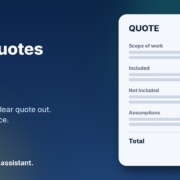
Illustration of a tidy quote document with scope, inclusions, exclusions and assumptions filled in and a highlighted space for your price, next to the headline Write quotes faster with AI

Quotes win jobs. But for most small business owners I talk to, writing them is the job nobody wants to do. You’ve just finished a site visit or a discovery call, you know exactly what the customer needs, and then the quote sits in your head for three days because you’re flat out. By the time it lands in their inbox, they’ve often gone with whoever got back to them first.

The good news is that this is one of the easiest places to start using AI in your business. You don’t need new software, you don’t need to change how you price, and you stay in control of every number. In this post I’ll walk you through how to write quotes faster with AI, step by step, using ChatGPT, Claude, Grokbot or any AI assistant you already have.

Why quotes take so long (and why speed matters)

When I look at how a business actually produces a quote, the slow part is almost never the pricing. It’s everything around it:

  • Turning rough notes into clear scope. Your notes say “bathroom, retile, check plumbing, maybe vanity”. The customer needs to read what’s included and what isn’t.
  • Starting from a blank page. Even with a template, you end up rewriting the intro, the inclusions and the terms every single time.
  • Getting the tone right. You want it to sound professional and friendly, not like a legal document.
  • Remembering the follow-up. Once it’s sent, it’s easy to forget to check in.

Every one of those is a writing task, and writing is exactly what AI assistants are good at. The pricing and judgement stay with you. The words come together much faster.

What AI should and shouldn’t do in your quotes

Before you start, it’s worth being clear about the line. I recommend this split to every business I work with:

Let AI handle

  • Turning your notes or a call transcript into a clean scope of work
  • Writing a short, personal intro that shows you listened
  • Listing inclusions, exclusions and assumptions so there are fewer surprises later
  • Drafting the cover email and a polite follow-up

Keep with you

  • Every price, rate and total. Never let an AI make up a number.
  • Your terms, warranties and anything with legal weight
  • The final read-through before it goes to the customer

Think of the AI as a fast, tidy assistant who drafts the quote while you check it. Nothing goes out until you’ve read it.

Step 1: Capture the job while it’s fresh

The quality of the quote depends on what you give the AI. Straight after the site visit or call, spend two minutes getting the details down. That can be:

  • A voice memo on your phone, transcribed with your phone’s built-in dictation
  • A few dot points typed in the car
  • The transcript or notes from a video call

Don’t worry about making it neat. Include what the customer asked for, anything you noticed, what they care about most (price, timing, quality), and anything you’re not sure about yet. Messy is fine. The AI’s job is to tidy it.

Step 2: Give the AI your quote structure once

The trick to consistent quotes is giving the AI the same structure every time. Here’s a brief you can copy and save:

You help me write quotes for my business, [business name], which does [what you do] in [area]. Using my notes below, write a quote draft with these sections: a two-sentence personal intro that references what the customer told me; a scope of work as clear dot points; what’s included; what’s not included; assumptions I’m making; next steps to accept. Use plain Australian English and a friendly, professional tone. Do not add any prices, rates, dates or guarantees. Leave [PRICE] where a price goes. If anything in my notes is unclear, list your questions at the end instead of guessing.

My notes: [paste notes]

That last instruction matters. Telling the AI to ask questions rather than guess is what keeps the draft accurate.

Step 3: Add your pricing yourself

Once the draft comes back, read through the scope and fill in the prices from your own price list or costing sheet. This is also a good moment to sanity check the scope. If the AI has listed something you didn’t mean to include, take it out. If its questions at the end point to a gap, sort it out with the customer before you send.

If you quote the same kinds of jobs often, you can paste your standard price list into the brief and ask the AI to suggest which line items apply. Just treat that as a suggestion and check every figure against your own numbers.

Step 4: Write the cover email and the follow-up

A good quote deserves a good email. Ask the AI:

Write a short email to [customer name] sending this quote. Thank them for their time, mention the one thing they said mattered most to them, and tell them how to accept or ask questions. Under 120 words. Then write a friendly follow-up email I can send in three days if I haven’t heard back, which isn’t pushy and gives them an easy way to say no.

Save the follow-up as a draft and set a reminder in your calendar or CRM. That one habit alone tends to win back quotes that would otherwise go quiet. If you want more on this, I wrote a full guide on how to follow up leads with AI without being pushy.

Step 5: Build a quote library over time

Every quote you send teaches you something. Keep the ones that won the job in a folder. After a few weeks you’ll have a small library of real examples, and you can paste one into your brief and say “match the style and level of detail of this quote”. Your drafts will start sounding more like you, and you’ll need fewer edits each time.

A quick example

Here’s how this might look for a painter. The notes from the site visit say:

“Sarah, 3 bed weatherboard, exterior only, some flaking on north side, wants it done before Christmas, worried about mess with dog, colour already picked.”

From that, the AI can produce an intro that mentions finishing before Christmas and keeping the yard safe for the dog, a scope that covers prep and repair of the flaking boards, inclusions like protecting garden beds, exclusions like interior work, and an assumption that the colour is already chosen. You add the price and the start date, read it through, and send. What used to be a job for Sunday night becomes a ten-minute task in the van.

When to move from copy and paste to an AI agent

Copy and paste is the right place to start. It’s free, it’s safe and you learn what good looks like. Once you’re doing it every day, it might be time for an AI agent that does more of the legwork for you, such as pulling the notes from your call recordings, filling in your quote template and preparing the follow-up for you to approve.

That’s the idea behind my AI agents pack. They’re ready-made agents for jobs like replying to enquiries, following up leads and keeping your records up to date, and they work with ChatGPT, Claude, Grokbot or any AI assistant. You stay in control and approve anything that goes to a customer.

A note on privacy

Quotes often include customer names, addresses and details about their home or business. Before you paste that into any AI tool, check the tool’s privacy and data settings, and only share what you need to. Many tools let you turn off using your chats for training. If you’re unsure, leave out the customer’s surname and address in the draft and add them in at the end.

Frequently asked questions

Can AI work out my prices for me?

I don’t recommend it. AI can suggest which line items from your own price list might apply, but every number should come from you. An AI that guesses a price can cost you the job or your margin.

Which AI tool is best for writing quotes?

Any of the main assistants will do the job well, including ChatGPT, Claude and Grokbot. The brief you give it matters far more than which tool you pick.

Will customers know the quote was written with AI?

Not if you do it properly. Because the draft starts from your own notes and you edit it before sending, it reads like you on a good day. The personal intro and the details from the visit are what make it feel human.

Do I need to change my quoting software?

No. You can paste the AI’s draft into whatever you use now, whether that’s a Word template, your accounting software or your CRM.

How long does it take to set up?

About fifteen minutes. Write your brief once, save it somewhere handy, and try it on your next quote.

Want help getting quotes out faster?

If you’d like to see where AI could save you the most time, from quotes to follow-ups to admin, book an AI audit and we’ll map it out together. Or, if you’d rather get started yourself, grab the AI agents pack and have your first agent running this week.
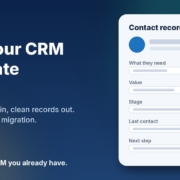
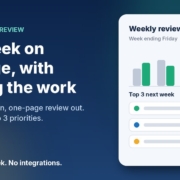
Illustration of a CRM contact record card with every field, from what the customer needs to the next step, filled in and ticked, next to the headline Keep your CRM up to date with AI

You paid for a CRM because someone told you it would keep every lead, every client and every deal in one place. And it can. The catch is that it only knows what somebody types into it. After a long day on calls, in meetings or on the tools, nobody feels like writing up notes, updating the deal stage and setting a follow-up task. So the CRM slowly turns into a very expensive contact list with half the details missing.

The usual reaction is to blame the software and start shopping for a new one. In my experience that’s rarely the real problem. The problem is that nothing is feeding the CRM you already have.

In this post I’ll show you how to use AI to keep your CRM up to date without switching systems: turning messy call notes into clean records, catching leads that have gone quiet, and keeping deal stages honest. You can start today with copy and paste in ChatGPT, Claude, Grokbot or any AI assistant, then automate more once you trust it.

Why your CRM is always out of date

When I sit down with small business owners and open up their CRM, I usually see the same patterns:

  • Blank or half-filled contact records. A name and a phone number, but no notes on what they wanted, what was quoted or what happens next.
  • Deals stuck in the wrong stage. A job that was won three weeks ago is still sitting in “Quote sent”, so the pipeline tells you nothing useful.
  • No next step. Leads with no follow-up task, so they only get chased if someone happens to remember.
  • Notes living everywhere else. The real detail is in someone’s notebook, a text thread or their head.

None of this is laziness. Data entry is boring, it happens at the worst possible time (straight after a call, when the next one is already ringing), and nobody sees the benefit until months later. That’s exactly the kind of work AI is good at taking off your plate.

Why switching CRMs usually doesn’t fix it

Moving to a new CRM feels like a fresh start. But you’d be spending weeks migrating data, rebuilding pipelines and retraining the team, and the new system would still rely on the same people typing in the same notes at the end of the same busy days. Six months later you’re back where you started, just with a different logo on the screen.

The better question isn’t “which CRM should we use?” It’s “what is going to keep our CRM updated?” That’s where an AI assistant, and later an AI agent, comes in.

What AI can do for your CRM

Think of AI as the admin person who sits next to your CRM and does the typing. There are three jobs it does well.

1. Turn messy notes into clean records

After a call, you jot down a few rough lines or record a quick voice memo. The AI turns that into a tidy summary with the fields your CRM actually uses: what they need, budget if mentioned, timeframe, decision maker, objections, and the agreed next step with a date. You paste it straight into the contact or deal.

2. Catch the leads that have gone quiet

Once a week, export your open leads or deals (most CRMs let you export a list to a spreadsheet) and ask the AI to flag anything with no activity for a set number of days or no next step booked. You get a short list of who to chase, plus a suggested follow-up message for each one.

3. Keep deal stages honest

Give the AI the same export and your stage definitions, and ask it to point out deals that look like they’re in the wrong stage based on the notes. A deal with a signed quote in the notes but still marked “Contacted” gets flagged for you to fix.

Notice that in all three jobs the AI suggests and you decide. It doesn’t need a login to your CRM to be useful on day one.

How to set it up this week (no integrations)

Here’s the simplest way to start. It takes about half an hour to set up and a few minutes a day after that.

Step 1: Write down what a “complete” record looks like

Open your CRM and list the fields that actually matter to your business. For most small businesses it’s something like: contact details, source (how they found you), what they need, value of the job, stage, last contact date, and next step with a date. Keep it short. If a field never gets used, leave it out.

Step 2: Give your AI assistant a standing brief

Most AI assistants let you save instructions in a project, custom GPT or similar. Paste in something like this and adjust it to suit:

You help me keep my CRM up to date. When I paste in rough notes from a call, email or meeting, turn them into a CRM update with these fields: Contact, Source, What they need, Estimated value, Stage, Last contact date, Next step and date, Notes (three lines max). Only use information in my notes. If something isn’t mentioned, write “not provided”. Never guess numbers or dates. Finish with one line suggesting the next action if I haven’t given one.

The “only use information in my notes” line matters. Without it, AI tools can fill gaps with confident-sounding guesses, and a CRM full of made-up details is worse than a blank one.

Step 3: Use it straight after every call

Make it a habit: hang up, paste your rough notes or a voice-to-text transcript into the assistant, copy the result into the CRM. It’s thirty seconds of work instead of five minutes of typing, which is the difference between it happening and not happening.

Step 4: Run a weekly pipeline check

Once a week, export your open deals and paste them in with a prompt like:

Here are my open deals. List any with no activity in the last 7 days or no next step booked, and any that look like they’re in the wrong stage based on the notes. For each one, give me a one-line reason and a short, friendly follow-up message I could send. Don’t invent any details that aren’t in the data.

Work through the list, update the CRM and send the follow-ups you’re happy with. If you want help writing follow-ups that don’t sound pushy, I covered that in how to follow up leads with AI.

When to move from copy-paste to an AI agent

Copy and paste is the right place to start because you get to see exactly what the AI produces and fix the brief before anything runs on its own. Once you trust the output, the next step is an AI agent that does the same jobs without you in the middle: picking up new enquiries, writing the notes into the record, setting the follow-up task and flagging stale deals each week.

Whether that’s possible depends on your CRM and your AI tools. Many CRMs have an API or built-in automation, and some AI assistants can connect to other apps. That’s the part worth getting right with someone who has done it before, because a badly set up agent can create a mess in your data just as fast as it fixes one. My advice: automate one job at a time, starting with the one you hate most, and keep a human check on anything that goes out to a customer.

Keep customer data safe

Your CRM is full of personal information, so treat it carefully when you bring AI into the picture.

  • Check your AI tool’s data settings. Use a business plan where possible and turn off any option that lets the provider train on your data. The OAIC has practical guidance on privacy and the use of commercially available AI products that’s worth a read, and it recommends not entering personal information into publicly available AI tools where you can avoid it.
  • Share only what’s needed. For a pipeline check, the AI rarely needs phone numbers or home addresses. Remove columns you don’t need before you paste.
  • Accuracy is part of the job. Under the Australian Privacy Principles, businesses covered by the Privacy Act need to take reasonable steps to keep the personal information they hold accurate, up to date and complete (see the OAIC’s APP quick reference, APP 10). A tidy, current CRM helps with that, as long as the AI isn’t guessing.

Common mistakes to avoid

  • Letting the AI guess. If a budget or date wasn’t mentioned, it should say so. Check the first few weeks of updates closely.
  • Tracking too many fields. Ten fields nobody fills in are worse than five that are always right.
  • Automating before the habit exists. Get the copy-paste routine working first. An agent built on a process nobody follows just automates the chaos.
  • Sending follow-ups without reading them. The AI drafts, you decide. Your name is on the message.

Frequently asked questions

Do I need to switch CRMs to use AI?

No. This approach works with the CRM you already have, whether that’s HubSpot, GoHighLevel or something else. You start with copy and paste, so it doesn’t matter which system you use.

Which AI tool should I use?

Whichever one you already use. The briefs above work in ChatGPT, Claude, Grokbot or any AI assistant. A clear brief and honest notes matter more than the brand of tool.

How long does it take each day?

About thirty seconds after each call to paste in your notes and copy the update back, plus fifteen minutes or so for the weekly pipeline check. Setting up the brief takes around half an hour.

Can AI update my CRM automatically?

Often, yes, but it depends on your CRM and your tools. Start manually so you can check the output, then automate one job at a time once you trust it.

Is it safe to put customer details into AI?

Share only what’s needed, use a business plan with training on your data turned off, and follow the OAIC’s guidance on commercially available AI products. If in doubt, remove names and contact details before pasting.

Want AI agents working on your CRM?

I set up AI agents that sit on top of the CRM you already pay for, handling the notes, follow-ups and pipeline updates so your team can get back to selling. No migration.

See how it works

Want to try it yourself first? Grab my free Steal My AI Agents pack, which works with ChatGPT, Claude, Grokbot or any AI assistant. Or book a free AI audit.

Illustration of a one-page weekly business review card with a bar chart comparing this week and last week and a list of next week's top three priorities, next to the headline Your week on one page, with AI doing the work

It’s Friday afternoon. You’ve been flat out all week, the phone hasn’t stopped, and if someone asked you how the business actually went this week, you’d probably say “busy”. But busy doing what? How many enquiries came in? How many turned into jobs? Which quotes are still sitting there with no reply? And what’s the one thing that would make next week better?

Most small business owners never stop long enough to answer those questions. Not because they don’t care, but because there’s no time, and pulling it all together feels like a job in itself.

In this post I’ll show you how to set up a simple weekly business review with AI: you spend ten minutes on a Friday pasting in your numbers and notes, and your AI assistant turns them into a one-page report with next week’s top three priorities. Then on Monday it turns that report into a plan. It works with ChatGPT, Claude, Grokbot or any AI assistant, and you don’t need to connect anything to get started.

Why owners never get time to work on the business

When I talk to small business owners about where AI can help, a weekly review rarely comes up first. Lead replies and follow-ups get the attention because the pain is obvious. But underneath a lot of those problems is the same thing: nobody’s stepping back to look at the whole week.

Here’s what that usually looks like:

  • You run on gut feel. You know roughly how things are going, but you couldn’t tell me whether this week was better or worse than last week.
  • Things slip quietly. A quote doesn’t get followed up, a to-do gets carried over three weeks in a row, and nobody notices until it’s a problem.
  • Reviews feel like homework. Sitting down with a blank page and a spreadsheet at the end of a long week is the last thing anyone wants to do.

That last one is where AI genuinely helps. You still provide the facts. The AI does the boring part: organising them, spotting what’s stuck, and writing it up in a format you can read in two minutes.

What an AI weekly business review actually does

The Weekly Business Review agent in my free AI agents pack is one of the simplest in the pack, and it needs no integrations at all. Each week it:

  1. Takes what you paste in on Friday: your handful of weekly numbers, the enquiries that came in, your to-do list, and anything else that happened.
  2. Writes a one-page review with the same headings every week, so you can compare one week with the next.
  3. Calls out what’s stuck, such as leads that haven’t been followed up or to-dos that keep getting carried over.
  4. Picks next week’s top three priorities, each with a small first step.
  5. Turns it into a plan on Monday, with no more than three must-dos per day.

The one-page review format

Here are the headings I use:

  1. The week in one line
  2. Numbers: this week vs last week (and against your targets, if you have them)
  3. What went well (no more than three points)
  4. What’s stuck or slipping (no more than three points)
  5. Next week’s top three priorities, each with a first step
  6. One thing to stop doing or hand off

That’s it. If it doesn’t fit on one page, it’s too long, and you won’t read it.

The most important rule: no made-up numbers

AI assistants are very good at sounding confident, and that’s a risk when you’re dealing with figures. If you forget to give it last week’s invoicing total, a badly briefed assistant might fill the gap with a guess. So the brief needs one firm rule: only use the numbers I give you, never estimate, and if something’s missing, write “not provided”. A review built on invented numbers is worse than no review at all.

How to set it up in about 30 minutes

Step 1: Pick three to six weekly numbers

Don’t try to track everything. Choose a few numbers that tell you whether the week went well, and that you can find in a couple of minutes. For a service business that might be new enquiries, quotes sent, jobs booked and money invoiced. A clinic might track appointments booked, cancellations and new clients. If you’re not sure, ask your AI assistant to interview you about how you win customers and get paid, one question at a time, and recommend the numbers and where you’d find each one.

Step 2: Start a simple weekly numbers note

Keep one line per week in a note or spreadsheet, copied from wherever the figures live: your invoicing software, booking system or inbox. This becomes your “last week” comparison, and after a couple of months you’ll have a picture of your business you’ve probably never had before.

Step 3: Give your AI assistant a clear brief

Set up a project, custom assistant or saved note in ChatGPT, Claude, Grokbot or any AI assistant, and paste in a brief like this, filled in with your details:

You are the weekly business reviewer for [business name], a [type of business] in [area]. Each Friday I’ll paste in this week’s numbers ([your numbers]), enquiries, to-do list and anything else that happened. Turn it into a one-page Weekly Business Review with these headings: 1. The week in one line. 2. Numbers: this week vs last week. Only use numbers I give you. Never invent or estimate. If something’s missing, write “not provided”. 3. What went well (max 3 points). 4. What’s stuck or slipping (max 3 points), including leads not followed up and to-dos carried over more than once. 5. Next week’s top 3 priorities, each with a small first step. 6. One thing to stop doing or hand off. Plain Australian English, direct and encouraging, no waffle. It must fit on one page.

If your assistant doesn’t remember past chats, paste last week’s report in too, so it can compare.

Step 4: Friday, run the review

Set a reminder for Friday afternoon. When it goes off, paste in the week: your numbers, a quick list of enquiries (name, what they wanted, where it’s at), your to-do list marked done or not done, and any wins or problems. Read the review, fix anything that’s off, and save it in a “Weekly reviews” folder.

Step 5: Monday, set the plan

On Monday morning, paste Friday’s report plus anything new since then, and ask for your plan for the week: the top three priorities with a first step and a time for each, no more than three must-dos per day, and anything to delegate, delay or drop. Then block out time in your calendar for the top three before the week takes over.

What to feed it each Friday

The review is only as good as what you give it. You don’t need to be thorough, just honest. A Friday paste-in might look something like this (example figures only):

Numbers: Enquiries 9, quotes sent 5, jobs booked 3, invoiced $6,400.
Enquiries: Sam, bathroom quote, waiting on reply. Jo, ongoing maintenance, booked. Alex, price check, no reply yet.
To-dos: Update price list (not done, third week). Chase two overdue invoices (done).
Anything else: Lost a day to a supplier delay. Two great Google reviews.

From that, a good review will tell you that the price list has now slipped three weeks and should either get done or get dropped, that Alex hasn’t heard back, and that Sam’s quote needs a follow-up before the weekend.

Keep an eye on cash flow and privacy

If money in and money out isn’t one of your weekly numbers, I’d think about adding it. business.gov.au’s cash flow section has a free cash flow statement template and a guide to managing cash flow, and a weekly review is a natural place to check it. The AI won’t do your bookkeeping, but it will notice when overdue invoices keep showing up in your notes.

Be sensible about what you paste in, too. The Office of the Australian Information Commissioner’s guidance on privacy and the use of commercially available AI products recommends caution about putting personal information, especially sensitive information, into publicly available AI tools. For a weekly review you rarely need it: first names and a few words about the job are plenty. Use a business account of your AI assistant and check its data settings. This isn’t legal advice, so if you handle health or other sensitive information, check what applies to you.

What a weekly review gets you

The obvious win is clarity. In ten minutes on a Friday you know how the week went, what’s slipping and what matters next. The less obvious win is consistency: the same six headings every week make patterns easy to spot, like a number that’s drifting down, or the same task that never gets done.

Frequently asked questions

Do I need to connect my accounting or booking software?

No. This agent works fine with copy and paste. You copy a few numbers from wherever they live into your weekly note, then paste the week into your AI assistant. If your assistant can connect to your other tools you can automate more later, but it isn’t needed.

How long does the weekly review take?

Once it’s set up, around ten minutes on a Friday to gather and paste in your notes, and a few minutes on Monday to set the plan. The first setup takes about half an hour.

What if I don’t know which numbers to track?

Ask your AI assistant to interview you about how you win customers and get paid, then recommend three to six numbers and where to find each one. Start small. You can always change them later.

Can the AI get my numbers wrong?

It can if you let it guess. Tell it to only use the numbers you give it, never estimate, and write “not provided” for anything missing. Always check the numbers section before you rely on the review.

Which AI tool should I use?

Whichever one you already use. The brief above works in ChatGPT, Claude, Grokbot or any AI assistant. A consistent format and honest notes matter far more than the brand of tool.

Get my AI agents (free)

My free Steal My AI Agents pack includes the Weekly Business Review agent, plus agents for instant lead replies, follow-ups, reviews, client onboarding and inbox triage, with the prompts, setup steps and routines. It works with ChatGPT, Claude, Grokbot or any AI assistant. No code needed.

Send me the agents

Rather have it set up for you? Book a free AI audit.

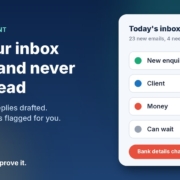
Illustration of an inbox sorted by AI into new enquiry, client, money and can wait, with a red flag on a changed bank details email, next to the headline Sort your inbox with AI and never miss a lead

You open your inbox at 7 pm after a full day on the tools or with clients, and there are 63 unread emails. Somewhere in there is a new enquiry worth a few thousand dollars, a client asking a quick question, and an invoice that needs paying. So you skim, reply to the easy ones, and tell yourself you’ll deal with the rest tomorrow.

That’s how good leads go cold and small questions turn into annoyed clients. Not because you don’t care, but because email treats everything as equally urgent, and it isn’t.

In this post I’ll show you how to set up a simple inbox triage agent for a small business: one that sorts your email into a short list of what matters, drafts replies for the routine stuff, and flags anything risky for you to check. You can run it with ChatGPT, Claude, Grokbot or any AI assistant, and nothing gets sent without you.

Why your inbox feels like a second job

When I sit down with small business owners and look at their email, the same few problems keep coming up:

  • Everything looks the same. A new customer enquiry sits in the same list, in the same font, as a software update notice.
  • The important emails get buried. If you don’t reply to an enquiry while you’re looking at it, it slides down the page and out of mind.
  • Replies take longer than they should. Most emails need a two-line answer you’ve written a hundred times before, but you still start from a blank screen.
  • Nobody else can help. The inbox lives in your head, so there’s no easy way to hand part of it to a staff member.

You don’t need a fancy new email app to fix this. You need a clear set of categories, a few example replies, and something that does the first pass for you.

What an AI inbox triage agent actually does

The inbox triage agent in my free AI agents pack does four things:

  1. Sorts each new email into a category, such as new enquiry, existing client, money in or out, admin, and can wait.
  2. Gives you a short summary of what’s in your inbox: who needs a reply, what they want, and how urgent it is.
  3. Drafts replies for the routine emails, in your voice, ready for you to check and send.
  4. Flags anything unusual, like a request to change bank details or an urgent payment demand, so you look at it properly before acting.

The result is that you open your inbox to a short list instead of a long one. You still make every decision. You just stop spending your evenings working out which decisions need making.

Start with five categories, not fifty

The biggest mistake people make with email sorting is creating too many folders. Keep it simple. For most service businesses these five are plenty:

  • New enquiry: someone who isn’t a customer yet, asking about your services. These come first, every time.
  • Client: an existing customer with a question, a change or a problem.
  • Money: invoices, payment requests, remittances and anything mentioning bank details.
  • Admin: suppliers, bookings, internal stuff that needs a reply but isn’t urgent.
  • Can wait: newsletters, receipts, notifications and promotions.

If you can’t decide where an email belongs, that’s fine. Ask the AI to put it in a “check me” pile, and you’ll look at it yourself.

The daily summary

Instead of scrolling, you get something like this each morning and afternoon:

New enquiries (2): Sam wants a quote for a bathroom renovation in Wynnum, asking about availability in December. Reply drafted. Jo asked whether you service the Sunshine Coast. Reply drafted.
Clients (1): Alex asked to move Thursday’s appointment to Friday morning. Reply drafted, check your calendar.
Money (1): A supplier email says their bank details have changed. Flagged: call them on a number you already have before paying.
Can wait (18): newsletters and notifications.

Those names and details are just an example, but you get the idea. Five minutes with that summary and you know exactly where your attention needs to go.

How to set it up in about 30 minutes

Step 1: Write your categories and rules

Take the five categories above and adjust them to suit your business. Then write one sentence for each explaining what belongs there. For example: “New enquiry: anyone who isn’t already a client asking about prices, availability or whether we can help.” Clear rules are what make the sorting accurate.

Step 2: Collect five example replies

Look through your sent folder and find replies you’re happy with: answering a price question, confirming a booking, saying you don’t service an area, rescheduling an appointment, and following up on a quote. These teach the AI how you actually write.

Step 3: Give your AI assistant a clear brief

Open ChatGPT, Claude, Grokbot or any AI assistant and paste in a brief like this, filled in with your details:

You are the inbox assistant for [business name], a [type of business] in [area]. For each email I give you: 1. Put it in one category: New enquiry, Client, Money, Admin or Can wait, using these rules: [your rules]. 2. Summarise it in one sentence. 3. For New enquiry, Client and Admin emails, draft a reply of no more than 100 words in Australian English that sounds like these examples: [your example replies]. 4. If an email asks for a payment, mentions new or changed bank details, or pushes for urgent action, label it FLAG and don’t draft a reply. Never promise prices, dates or anything I haven’t told you. If you’re not sure, say so.

Step 4: Run it, check it, send it

To start with, paste in your unread emails (or connect your email if your AI assistant supports it) and ask for the sort and summary. Read every draft before it goes anywhere. Fix anything that doesn’t sound like you, and tell the assistant what you changed, so the next drafts get closer.

Step 5: Put it on a schedule once you trust it

After a week or two of checking its work, set it to run at the same times each day, say 8 am and 3 pm, and leave the drafts waiting in your email for you to approve. The pack walks you through setting up these scheduled routines. Keep the “you approve every reply” rule, at least for new enquiries and anything to do with money.

Let the AI flag scams, not pay invoices

This is the part I’d ask you not to skip. Fake invoices and “we’ve changed our bank details” emails are one of the most common ways small businesses lose money.

The Australian Signals Directorate’s guide to protecting against business email compromise lists the warning signs to watch for, including an unexpected change of bank details, an urgent payment request, and an email address that doesn’t quite match the supplier’s name. Scamwatch’s page on business email compromise scams gives the same advice: stop and check any change to payee details, and contact the business on a phone number you’ve found yourself, not one in the email.

An AI assistant is good at spotting those patterns and putting a big flag on them. It is not the right tool to decide whether a payment request is genuine. So the rule in your brief should be simple: anything involving money or bank details gets flagged for a human, and a human checks it by phone before anything is paid.

Keep your clients’ information safe

Your inbox is full of personal information: names, phone numbers, addresses, and sometimes health or financial details. The Office of the Australian Information Commissioner’s guidance on privacy and the use of commercially available AI products recommends being cautious about putting personal information, especially sensitive information, into publicly available AI tools.

A few practical habits help:

  • Use a business account of your AI assistant, and check its settings for whether your data is used for training.
  • Keep sensitive emails out of it. If you run a clinic or handle financial records, set a rule that those emails go straight to you and are never pasted into the AI.
  • Only share what’s needed. A first name and the question is usually enough to draft a reply.

This isn’t legal advice. If you handle health, financial or other sensitive information, check what applies to you with someone qualified.

What a sorted inbox gets you

The obvious win is time back in your evenings. The bigger one is that new enquiries stop getting lost. When they’re always at the top of a short list with a reply already drafted, you answer them the same day, which is often the difference between winning the job and the customer going with whoever replied first.

It also makes your inbox something you can share. Once the categories and rules are written down, a staff member can handle the “Admin” pile while you handle enquiries, and everyone knows what goes where.

Frequently asked questions

Can AI read and sort my emails automatically?

Yes, many AI assistants can connect to Gmail or Outlook and sort or summarise new emails on a schedule. You can also start without connecting anything by pasting emails in and asking for a sort and summary.

Will the AI send replies without me knowing?

Only if you set it up that way, and I’d recommend you don’t. Have it save replies as drafts so you read and send each one. That keeps you in control of what goes out in your name.

What if it puts an email in the wrong category?

It will sometimes, especially at the start. Tell it what it got wrong and tighten the rule for that category. Adding a “check me” pile for anything it’s unsure about catches most of these.

Is it safe to use AI on my business email?

It can be, with care. Use a business account, keep sensitive emails out of it, and never let it approve payments. The OAIC recommends caution about putting personal information into publicly available AI tools.

Which AI tool should I use?

Whichever one you already use. The brief above works in ChatGPT, Claude, Grokbot or any AI assistant. Clear categories and good example replies matter far more than the brand of tool.

Get my AI agents (free)

My free Steal My AI Agents pack includes the inbox triage agent, plus agents for instant lead replies, follow-ups, reviews, client onboarding and a weekly business review, with the prompts, setup steps and routines. It works with ChatGPT, Claude, Grokbot or any AI assistant. No code needed.

Send me the agents

Rather have it set up for you? Book a free AI audit.

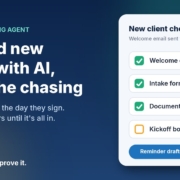
Illustration of a new client checklist with welcome email, intake form and documents ticked off and kickoff booked still open, next to the headline Onboard new clients with AI, minus the chasing

You’ve just won a new client. The proposal’s signed, everyone’s keen, and now comes the bit nobody enjoys: the welcome email, the intake form, the list of documents you need, the kickoff call to book. Then a week later you realise half of it never came back, and you’re writing “just following up on those documents” for the third time.

Onboarding is one of those jobs that’s the same every single time, which is exactly why it slips. It’s not hard work. It’s just a lot of small steps that depend on you remembering them while you’re busy doing the actual work.

In this post I’ll walk you through a simple client onboarding agent for a small business: a personal welcome the moment someone signs, a checklist that tracks what’s still missing, and polite reminders until everything’s in. You can run it with ChatGPT, Claude, Grokbot or any AI assistant, and you stay in control of every message.

Where onboarding usually breaks down

When I look at how small businesses bring on new clients (or new staff), the problems are nearly always the same:

  • The welcome is slow. The client signs on Friday and hears nothing until Tuesday. That’s the moment they’re most excited, and it goes quiet.
  • The information is scattered. The form link is in one email, the document list in another, the booking link in a text message.
  • Nobody knows what’s outstanding. Did they send the signed agreement? Did they book the kickoff? You have to go digging to find out.
  • Chasing feels awkward. So it gets put off, the project starts late, and the client wonders why things are slow.

None of these need a big new system to fix. They need one clear welcome message, one simple checklist, and someone (or something) that checks the list every couple of days.

What an AI onboarding agent actually does

The client onboarding agent in my free AI agents pack has four jobs:

  1. Notices a new client. That might be a signed proposal, a new deal in your CRM, a form submission, or simply you adding a row to a spreadsheet.
  2. Drafts a personal welcome that explains the next three steps, lists the documents you need, and includes your intake form and kickoff booking links.
  3. Adds them to a checklist so you can see at a glance what’s done and what isn’t.
  4. Chases what’s missing every couple of days with a short, friendly reminder, then tells you when everything is complete.

It works just as well for new hires as for new clients. Agencies, recruitment and staffing businesses, allied health practices, accountants and trades with a repeatable process all get a lot out of it.

The welcome: three steps, one email

A good welcome email is short and does one thing: makes it obvious what happens next. Something like:

Hi Priya, welcome aboard, and thanks for choosing Example Studio. Here’s what happens next:

1. Fill in our quick intake form (about 10 minutes): [form link]
2. Send through your logo files and your brand guide, if you have one.
3. Book your kickoff call at a time that suits: [booking link]

Once those are in, we’ll get started. Any questions, just reply to this email. Mike

Everything they need is in one place, in order, with links. No digging through old emails.

The reminder: short, specific, helpful

If something’s still missing after a couple of days, the reminder should name exactly what’s outstanding and include the link again:

Hi Priya, just a quick one. We’ve got your intake form, thanks! The only things left are your logo files and booking the kickoff call: [booking link]. Reply here if you’d like a hand with either.

Because the reminder only lists what’s actually missing, it feels helpful rather than naggy. That’s the difference between “just following up” and “here’s the one thing left”.

How to set it up in about 30 minutes

Step 1: Write down your onboarding steps

Before you touch any AI tool, list what a new client needs to do and what you need from them. For most businesses it’s three to five things: a form, a few documents, a signed agreement and a kickoff booking. If you can’t list it, the AI can’t either.

Step 2: Make a simple checklist sheet

A Google Sheet or Excel file is plenty. Use columns for name, email, form done, documents done, kickoff booked, and the date they were added. A yes or no in each column is all you need. If your form tool or booking tool can update the sheet automatically, great. If not, ticking a box yourself takes seconds.

Step 3: Give your AI assistant a clear brief

Open ChatGPT, Claude, Grokbot or any AI assistant and paste in a brief like this, filled in with your details:

You are the onboarding coordinator for [business name]. When I give you a new client’s first name and what they’ve signed up for, write a warm welcome email (no more than 150 words, Australian English) that lists what happens next in three steps, the documents we need: [document list], our intake form link: [form link], and our kickoff booking link: [booking link]. Sound friendly and down to earth. Don’t promise timeframes or results I haven’t given you.

Then add a second brief for reminders:

Write a polite reminder of about 40 words from [business name] that lists only the onboarding items still missing, with their links, and offers help if they’re stuck.

Paste in a welcome email you’ve sent before as an example, so the drafts sound like you rather than a robot.

Step 4: Draft, approve, send

When a new client signs, give the assistant their name and package and ask for the welcome. Read it, tweak anything that doesn’t sound right, and send it. Every couple of days, check the sheet, paste in who’s missing what, and ask for the reminders. It’s a few minutes of work instead of half an hour of writing from scratch.

Step 5: Automate once you trust it

Once you’ve approved a few rounds of drafts and you’re happy with them, you can connect the steps so they run on their own: a new row triggers the welcome, the sheet is checked on a schedule, and reminders go out for anything still marked “no”. The pack walks you through this. But start with approving every message. You’ll learn quickly what your clients actually get stuck on.

Keep client information safe

Onboarding often involves personal details and documents, so a little care goes a long way.

The Office of the Australian Information Commissioner’s Australian Privacy Principles quick reference sums up the basics. APP 11 says businesses covered by the Privacy Act must take reasonable steps to protect the personal information they hold from misuse, loss and unauthorised access, and APP 10 is about keeping that information accurate and up to date. Even if you’re not sure the Act applies to your business, they’re a sensible standard to follow.

The OAIC also has guidance on privacy and the use of commercially available AI products, which recommends being cautious about putting personal information, especially sensitive information, into public AI tools.

In practice, that means:

  • Give the AI only what it needs. A first name and the package they bought is enough to write a welcome. It doesn’t need their tax file number, health details or bank information.
  • Collect documents through a proper channel, like a secure upload form or your practice software, not by pasting them into a chat.
  • Keep the checklist sheet private and only share it with the people who need it.

This isn’t legal advice. If you handle health, financial or other sensitive information, check what applies to you with someone qualified.

What good onboarding gets you

The obvious win is time: no more writing welcome emails from scratch or keeping a mental list of who owes you what. But the bigger win is how the client feels. A clear, fast, organised welcome tells them they made the right call, before you’ve even started the work.

And because the agent tells you when everything’s in, you know exactly when a project is ready to start. No more kickoff calls where you realise you’re still waiting on the one file you needed most.

Frequently asked questions

Do I need special software to automate client onboarding?

No. A spreadsheet, your email and an AI assistant are enough to start. You can connect your form, booking tool or CRM later once the process is working.

How often should I send onboarding reminders?

Every couple of days is a good rhythm. Only list the items that are still missing, include the links again, and offer help. If someone still hasn’t responded after a few reminders, give them a call instead.

Can I use the same agent for onboarding new staff?

Yes. Swap the client steps for your new-hire steps, such as signing their contract, filling in their details and booking their first-day induction. The welcome and reminder briefs work the same way.

Is it safe to put client details into ChatGPT or other AI tools?

Keep it to the minimum. The OAIC recommends caution about entering personal information, particularly sensitive information, into publicly available AI tools. A first name and the service they bought is all the AI needs to write a welcome.

Which AI tool should I use?

Whichever one you already use. The briefs above work in ChatGPT, Claude, Grokbot or any AI assistant. Your clear steps and example emails matter far more than the brand of tool.

Get my AI agents (free)

My free Steal My AI Agents pack includes the client onboarding agent, plus agents for instant lead replies, follow-ups, reviews and inbox triage, with the prompts and setup steps. It works with ChatGPT, Claude, Grokbot or any AI assistant. No code needed.

Send me the agents

Rather have it set up for you? Book a free AI audit.

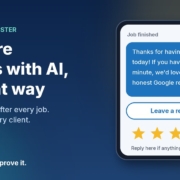
Illustration of a phone showing a thank-you text asking for an honest Google review, with a Leave a review button and five stars, next to the headline Get more reviews with AI, the right way

You finish a job, the client is happy, they say “we’ll leave you a review” and mean it. Then their week gets busy and the review never happens. Meanwhile the one client who had a bad day finds the time to write three paragraphs.

That’s not because your happy clients don’t care. It’s because nobody asked them at the right moment, in a way that took ten seconds. Asking for reviews is a small, repetitive job that’s easy to forget, which makes it a good fit for an AI assistant.

In this post I’ll show you a simple review request setup for a small business: one friendly message after every finished job, written with the AI assistant you already use, sent to every client, and set up in a way that keeps you on the right side of Google’s rules and Australian consumer law.

Why happy clients don’t leave reviews

When I talk to business owners about reviews, the same few problems come up:

  • Nobody asks. You meant to send a message once the invoice went out, then the next job started.
  • The ask comes too late. A week later the client has moved on and the job isn’t front of mind any more.
  • It’s too much effort for them. “Search for us on Google and leave a review” is three steps too many. A direct link is one tap.
  • The message feels awkward to write. So you put it off, or you send the same stiff template to everyone.

An AI review requester solves the timing and writing problems. Your Google review link solves the effort problem. Together they turn “we should ask for reviews” into something that just happens after every job.

First, the rules: ask everyone, the same way

Before we build anything, there’s one trap to avoid, because a lot of review tools fall straight into it.

A common trick is to ask clients for a rating first, then only send the Google review link to the people who score you 4 or 5 and quietly send everyone else to a private feedback form. It’s often called “review gating”, and it’s not allowed.

Google’s Maps user-generated content policy says merchants must not “discourage or prohibit negative reviews, or selectively solicit positive reviews from customers”. It also bans offering incentives such as payment, discounts or free services in exchange for a review. Google can remove reviews and restrict a Business Profile that breaks these rules.

In Australia, the ACCC says the same thing in its own way. Its page on online reviews for products and services explains that reviews should reflect people’s genuine opinions, and that any incentive for a review has to apply whether the review is positive or negative and be clearly disclosed. In its True Value Solar media release, the ACCC described a business that offered a free service only to customers who’d had a positive experience, and the program was discontinued after the ACCC investigated.

So the setup in this post follows three simple rules:

  1. Every finished job gets the same request, with the review link, whether you think they loved it or not.
  2. No incentives. No discounts, prizes or freebies for reviews.
  3. You never tell people what to write or what rating to give.

You can still invite private feedback. You just offer it alongside the review link, not instead of it. This isn’t legal advice, so if you’re unsure about anything in your industry, check with someone qualified.

What an AI review requester actually does

For a small business, the agent has three jobs:

  1. Notices a finished job. That might be an invoice marked paid, a job closed in your job app, or a row you tick off in a spreadsheet.
  2. Drafts a short, personal thank-you that mentions the actual job and includes your Google review link.
  3. Flags replies for you. If someone replies with a problem, you see it and deal with it yourself, as a person.

That’s it. One message per job, with an optional gentle reminder a few days later if they haven’t reviewed and haven’t replied. No chasing beyond that.

The message: thank them, then ask

Keep it to two or three lines, and send it the same day or the day after the job, while it’s fresh. Something like:

Hi Sarah, it’s Mike from Example Plumbing. Thanks for having us out to fix the hot water system today. If you’ve got a minute, we’d really appreciate an honest Google review: [link]. And if anything wasn’t right, just reply here and I’ll sort it out.

Notice what that message does. It thanks them for something specific, it asks for an honest review, it gives them a one-tap link, and it offers a direct line if something went wrong. Everyone gets exactly the same offer.

The reminder: one nudge, then stop

If there’s no review and no reply after about five days, one short reminder is fine:

Hi Sarah, just a quick one in case my last message got buried. Here’s that review link if you’d like to share how we went: [link]. No worries either way, and thanks again.

After that, leave it. Two messages is helpful. Five is annoying.

How to set it up in about 20 minutes

Step 1: Get your Google review link

In your Google Business Profile, look for the option to ask for reviews. Google’s tips to get more reviews explain how to create a link or QR code that takes customers straight to the review form. Save that link somewhere handy.

Step 2: Make a simple finished-jobs list

A spreadsheet is enough. Columns for the client’s name, their phone or email, what the job was, the date it finished, and whether the request and reminder have been sent. If your job or invoicing app already tracks finished jobs, use that instead.

Step 3: Give your AI assistant a clear brief

Open ChatGPT, Claude, Grokbot or any AI assistant and paste in a brief like this, filled in with your details:

You write review request messages for [business name], a [type of business] in [area]. I’ll give you a client’s first name and the job we did. Write a two- or three-line SMS from [your name] that thanks them for the specific job, asks for an honest Google review with this link: [link], and says they can reply if anything wasn’t right. Use Australian English, sound friendly and down to earth, no emojis. Never offer a discount or reward, never suggest a rating or what to write, and never change the message based on how happy you think they are.

Then add two or three messages you’ve written yourself as examples, so it picks up how you actually talk.

Step 4: Draft and approve, then send

Each afternoon, paste in the jobs you finished that day and ask for a message for each. Read them, tweak anything that doesn’t sound like you, and send. It takes a couple of minutes. Once you trust the drafts, you can connect it to your job app or SMS tool so it runs on its own, but start with approving every message.

Step 5: Reply to the reviews you get

Google’s own tips recommend replying to reviews, good and bad. Your AI assistant can draft those replies too. Just read them before posting, keep them short and specific, and never share a client’s private details in a public reply.

What to do when someone isn’t happy

Sooner or later a client will reply with a problem instead of a review. That’s the system working, not failing. You heard about it while you can still fix it.

Call them, sort it out, and don’t ask them to change or remove anything in return. If they’ve already left a negative review, reply politely, acknowledge the issue and offer to take it offline. Google’s guidance points out that a mix of positive and negative feedback often looks more trustworthy than a wall of five stars anyway.

The one thing the AI should never do is handle an unhappy client on its own. It drafts, it flags, and you take it from there.

Frequently asked questions

Can I only ask my happy clients for a review?

No. Google’s policy says businesses must not selectively ask for positive reviews or discourage negative ones, and the ACCC warns against practices that give a misleading picture of what customers think. Ask every client the same way.

Can I offer a discount for leaving a Google review?

Not on Google. Its policy bans incentives like payment, discounts or free services in exchange for reviews. The ACCC’s general rule is that any review incentive must apply regardless of whether the review is positive or negative and must be clearly disclosed, but Google doesn’t allow incentives at all, so it’s simplest not to offer them.

When is the best time to ask for a review?

As soon as the job is finished, ideally the same day or the next. The work is fresh in their mind and they’re most likely to take the minute to do it.

Is it okay to ask for private feedback as well?

Yes, as long as it sits alongside the review request rather than replacing it. Give everyone the review link and let them reply privately if they’d prefer to raise something with you directly.

Which AI tool should I use?

Whichever one you already use. The brief above works in ChatGPT, Claude, Grokbot or any AI assistant. What makes the messages good is your example messages and clear rules, not the brand of tool.

Get my AI agents (free)

My free Steal My AI Agents pack has ready-to-use agents for reviews, instant lead replies, follow-ups, client onboarding and inbox triage, with the prompts and setup steps. It works with ChatGPT, Claude, Grokbot or any AI assistant. No code needed.

Send me the agents

Rather have it set up for you? Book a free AI audit.

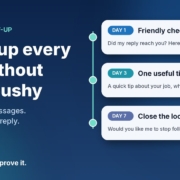
Illustration of a three-step follow-up timeline with day 1, day 3 and day 7 message cards and a green Replied: stop badge, next to the headline Follow up every lead without being pushy

Someone enquires. You reply. They say “thanks, I’ll have a think” or, more often, say nothing at all. And then life gets busy, and that lead quietly drifts off to whoever followed up next.

Most small business owners I talk to don’t lose work because their reply was bad. They lose it because there was no second message. Following up feels awkward, it’s easy to forget, and nobody wants to be the pushy business that keeps chasing.

The good news is that follow-up is one of the most rule-based jobs in your business, which makes it a great fit for AI. In this post I’ll walk you through the simple 7-day follow-up setup I use with small businesses: three short, helpful messages, written by the AI assistant you already have, approved by you, and stopped the moment someone replies.

Why follow-up falls through the cracks

It’s rarely laziness. It’s usually one of these:

  • There’s no list. Leads live across your inbox, Facebook messages, a website form and your phone. If they’re not in one place, there’s nothing to follow up from.
  • There’s no rule. “I’ll follow up in a few days” is a good intention, not a system. Without set days, it never quite happens.
  • Writing the message feels hard. You don’t want to sound desperate, so you put it off until it feels too late to bother.
  • You’re doing the actual work. When you’re on the tools or with clients all day, chasing last week’s enquiries is the first thing to go.

An AI follow-up agent fixes the last two problems straight away. A simple lead list fixes the first two, and you’ll set that up in about ten minutes below.

What a 7-day follow-up agent actually does

It’s not an automated sales machine that bombards people. For a small business, the agent does three things:

  1. Checks your lead list for people who enquired, got your first reply, and haven’t booked or replied since.
  2. Drafts the right follow-up for where they’re up to: day 1, day 3 or day 7.
  3. Stops for good as soon as the person replies, books or asks you to stop.

Three messages. That’s it. Each one has a different job, so none of them feels like a copy of the last.

Message 1 (day 1): the friendly check-in

A short note to make sure your first reply didn’t get buried, with your booking link again. Plenty of “no response” leads simply missed your message.

Message 2 (day 3): something genuinely useful

One practical tip related to what they asked about. A plumber might mention what to check before the visit. A physio might share a simple thing to avoid until the appointment. This is the message that builds trust, because it helps whether they book with you or not.

Message 3 (day 7): closing the loop

A polite “I don’t want to keep filling up your inbox. Would you like me to stop following up?” It sounds counterintuitive, but giving people an easy way out is respectful, and it often gets a reply when the first two didn’t.

How to set it up with the AI assistant you already have

You can build this today with ChatGPT, Claude, Grokbot or any AI assistant. No code, no new software.

Step 1: Start a simple lead list

Create a spreadsheet with these columns: name, contact details, date of enquiry, what they asked for, date of first reply, follow-ups sent, and status (open, booked, replied, stop). If you already use a CRM, you probably have most of this. If not, a Google Sheet or Excel file is plenty to start with.

Step 2: Write your follow-up brief

Open a new chat, project or custom assistant and give it the rules. Here’s a template you can fill in:

“You write short follow-up messages for [business name], a [type of business] in [area]. I’ll give you the lead’s first name, what they enquired about, and which follow-up this is (1, 2 or 3). Write in Australian English, in a warm, helpful tone, no more than 50 words. Follow-up 1: check they got my reply and include my booking link. Follow-up 2: share one practical tip related to their enquiry, then the booking link. Follow-up 3: politely ask whether they’d like me to stop following up. No fake urgency, no discounts unless I give you one, no more than one exclamation mark. Booking link: [link]. Sign off as [your first name].”

Save it so you can reuse it every time. That brief is your agent.

Step 3: Test it on old leads first

Pick five enquiries from the last month that went quiet. Ask your assistant for all three follow-ups for each one and read them as if you were the customer. Would you feel helped or hassled? Note anything you keep changing.

Step 4: Fix the brief, not the drafts

If you keep removing the same phrase or adding the same detail, turn it into a rule. “Never say ‘just checking in’.” “Mention we’re booked out two weeks ahead.” “Use the tip library below for message 2.” After a couple of rounds, most drafts should be ready to send with little or no editing.

Step 5: Run it once a day

Pick a regular time, such as 8am with your coffee. Look at the list, see who’s due a follow-up today, paste their details into your saved assistant, approve the draft and send. Update the row. If your AI tool supports scheduled tasks or routines, you can have it pull together the day’s due follow-ups and drafts for you each morning, so all you do is check and send.

Step 6: Track it for a month

Add one more column: “came back after follow-up?” After a month you’ll know, from your own numbers, whether follow-up is winning you work. I’d rather you trust that than anyone’s promises, including mine.

Guardrails so you’re helpful, not pushy

Stop the moment they reply

This is the most important rule. If someone replies, books or says no thanks, they come off the follow-up list immediately and you take over the conversation personally. Nothing kills trust faster than an automated “just following up!” after someone already said no.

Know the difference between a follow-up and marketing

Replying to someone’s enquiry about the job they asked about is one thing. Adding them to your newsletter or sending promotions is another. In Australia, commercial emails and messages fall under the Spam Act 2003, and the Australian Communications and Media Authority (ACMA) explains the rules in its guide to avoiding spam. In short, ACMA says you need consent to send marketing messages, and each message must identify you as the sender, include your contact details and make it easy to unsubscribe. Keep your follow-ups tied to what the person actually asked for, always sign off with your business name and contact details, and treat a “stop” as final. If you’re unsure where your messages sit, get proper advice.

Be careful with personal information

Your lead list holds names, phone numbers and email addresses. The Office of the Australian Information Commissioner (OAIC) has guidance on privacy and the use of commercially available AI products, including checking whether a tool’s terms let the provider use what you enter and, as best practice, not putting personal information into publicly available AI chatbots. The AI doesn’t need a phone number to write a good follow-up. Give it a first name and the job, and keep the contact details in your list.

Keep three messages as the limit

Three thoughtful messages over a week is attentive. Seven messages over a fortnight is annoying. If someone hasn’t responded after the closing-the-loop message, mark them as closed and let them go. They know where to find you.

When to take it further

The copy-and-paste version is a great place to start, and for many businesses it’s enough. It’s worth connecting things up properly when:

  • You’re following up more than a handful of leads each day.
  • Leads come from several sources and keeping the list up to date is becoming a job in itself.
  • You want follow-ups drafted and waiting for approval automatically, with replies detected so nobody gets chased by mistake.
  • More than one person in your team handles enquiries and you want everyone following the same rules.

That’s the kind of setup I help businesses build, and a free AI audit is the easiest way to see whether it’s worth it for you.

Follow-up works best when your first reply is fast too. If you haven’t sorted that yet, read my guide on how to reply to every new enquiry fast with AI. And if you’re still deciding which job to hand to AI first, start with my 30-minute small business AI audit.

Frequently asked questions

How many follow-ups should I send?

Three over about a week works well for most small businesses: a check-in, something useful, then a polite message offering to stop. After that, mark the lead as closed and stop contacting them.

Won’t automated follow-ups feel spammy?

Not if each message is short, relevant to what the person asked about, and stops the moment they reply. Starting with a draft-and-approve setup means you read every message before it goes out, so nothing gets sent that you wouldn’t write yourself.

Do I need a CRM for this?

No. A simple spreadsheet with each lead’s name, enquiry, dates and status is enough to start. A CRM becomes useful once you have more leads, more sources or a team sharing the work.

Is it legal to follow up people who enquired?

Following up the job someone asked you about is generally a normal part of doing business, but marketing messages are covered by the Spam Act 2003. ACMA’s guide explains the consent, identification and unsubscribe rules. Keep follow-ups tied to the original enquiry, include your business details, honour every request to stop, and get advice if you’re unsure.

Which AI tool is best for writing follow-ups?

Whichever one you already use and are comfortable with. The brief above works in ChatGPT, Claude, Grokbot or any AI assistant. The quality comes from your rules and examples, not the brand of tool.

Get the 7-Day Follow-Up agent (free)

The full follow-up prompt, setup steps and a daily routine are in my free Steal My AI Agents pack, along with agents for instant lead replies, reviews, onboarding, inbox triage and your weekly business review. It works with ChatGPT, Claude, Grokbot or any AI assistant. No code needed.

Send me the agents

Rather have it set up for you? Book a free AI audit.

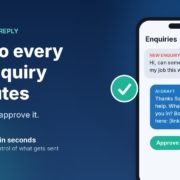
Illustration of a phone showing a new customer enquiry, an AI-drafted reply and an Approve button, with the headline 'Reply to every new enquiry in minutes'

A new enquiry lands at 10:40 on a Tuesday morning. You’re on a job, in a session with a client, or halfway through a quote. You see the notification, think “I’ll reply properly tonight”, and by the time you sit down at 8pm there are three more. One of them has already booked someone else.

If that sounds familiar, you don’t have a marketing problem. You have a reply-speed problem. And it’s one of the easiest jobs to hand to AI, as long as you set it up so you stay in charge of what actually gets sent.

In this post I’ll show you the simple “instant lead reply” setup I use with small businesses: what it is, how to build it with the AI assistant you already have, and the guardrails that stop it from embarrassing you.

Why reply speed matters more than most owners think

The best-known research on this is a 2011 Harvard Business Review article, The Short Life of Online Sales Leads by James Oldroyd, Kristina McElheran and David Elkington. It’s older and US-based, but the lesson still applies here.

The researchers did two things:

  • They tested how fast companies replied. They sent a web enquiry to 2,241 US companies and timed the response. 37% replied within an hour, 16% took one to 24 hours, 24% took more than 24 hours, and 23% never replied at all. Among the companies that replied within 30 days, the average response time was 42 hours.
  • They looked at what happens when you’re slow. In a separate study of 1.25 million sales leads across 42 companies, firms that tried to contact a lead within an hour were nearly seven times as likely to qualify that lead (have a meaningful conversation with the decision maker) as firms that tried even an hour later, and more than 60 times as likely as firms that waited 24 hours or longer.

You don’t need to take those exact multiples as gospel for your business. The direction is the point: people who enquire are usually ready to talk right now, and that window closes fast. If you’re paying for ads, SEO or a directory listing, a slow reply quietly wastes the money you spent getting that enquiry.

What an “instant lead reply” agent actually does

Forget the idea of a robot taking over your inbox. For a small business, an instant lead reply agent does three small things well:

  1. Reads the enquiry and works out what the person actually wants.
  2. Drafts a short, friendly reply in your voice that shows you read their message, asks one useful question, and offers a next step (usually a booking link or a call).
  3. Hands it to you to approve before anything is sent.

That last step is the important one. You’re not removing yourself from the conversation. You’re removing the blank-page part, so replying takes you 30 seconds between jobs instead of 10 minutes at night.

Why “draft, then approve” is the right starting point

AI assistants are very good at writing a polite, relevant first reply. They’re not good at knowing your current availability, your pricing for a tricky job, or the fact that you don’t service that suburb any more. Keeping a human approval step means a wrong guess never reaches a customer. Once you’ve seen a few weeks of drafts and trust them, you can decide whether any replies are safe to automate further.

How to set it up with the AI assistant you already have

You can build a working version of this today with ChatGPT, Claude, Grokbot or any AI assistant. No code needed.

Step 1: Write your business brief

Open a new chat (or a project, custom instructions or custom assistant, if your tool has them) and give it the context a new receptionist would need. Here’s a template you can fill in:

“You help me reply to new enquiries for [business name], a [type of business] in [area]. We do [main services]. We don’t do [things you don’t do]. When I paste an enquiry, draft a reply of no more than 80 words in Australian English. Thank them by first name, mention their specific need so they know a real person read it, ask ONE question that helps me qualify the job (for example, their suburb or timeframe), and offer this booking link: [link]. Never quote prices or promise dates. If the message looks like spam, just reply SKIP. Sign off as [your first name].”

Save it so you can reuse it. That brief is the whole “agent”. Everything else is just getting enquiries in front of it faster.

Step 2: Test it on your last ten enquiries

Before you use it on new leads, scroll back through your inbox or Facebook messages and paste in your last ten enquiries one by one. Read every draft and ask yourself: would I be happy sending this? Note anything you keep fixing.

Step 3: Fix the brief, not the drafts

If you keep changing the same thing, add a rule to the brief. “Don’t use exclamation marks.” “Mention we’re closed on Sundays.” “If they ask about emergency call-outs, give them our phone number.” After a round or two of tweaks, most drafts should need little or no editing.

Step 4: Make it part of your day

Pick a trigger you’ll actually stick to. For most owners, it’s simple: when an enquiry notification comes in, copy it into your saved assistant, check the draft, send. Many AI assistants have a phone app, so you can do this from the ute or between clients. If your tool supports scheduled tasks or routines, you can also set a midday and end-of-day check that pulls together any enquiries you haven’t answered yet.

Step 5: Track one number for two weeks

Keep a simple note of how long it took you to reply to each enquiry, before and after. That’s your honest result. I’d much rather you measure it in your own business than rely on anyone’s promise, including mine.

Guardrails that keep you out of trouble

Speed is great. Speed plus a wrong answer is not. These are the rules I build into every lead reply setup.

Never let it quote, promise or diagnose

Prices, dates, availability and anything that sounds like professional advice stay with you. The AI’s job is to start the conversation and get the booking, not close the deal.

Be careful with personal information

Enquiries contain names, phone numbers and sometimes sensitive details. The Office of the Australian Information Commissioner (OAIC) has published guidance on privacy and the use of commercially available AI products. Its advice includes checking whether a tool’s terms let the provider access or train on what you type in, building in human oversight, and, as a matter of best practice, not entering personal information (especially sensitive information) into publicly available AI chatbots.

In practice, that means a few simple habits: use a business plan with data controls where you can, strip out details the AI doesn’t need (it can write a great reply with just a first name and the request), and never paste in health, financial or other sensitive information. If you’re in health, finance or law, get proper advice before going further.

Review the drafts every week

Spend five minutes on Friday skimming the week’s replies. Look for anything that’s drifted off-tone or repeated a mistake, and update the brief. Treat it like a new staff member: it gets better with feedback.

When to go beyond copy and paste

The copy-and-paste version works, and for plenty of businesses it’s all you’ll ever need. It’s worth taking the next step when:

  • You’re getting enough enquiries that even 30 seconds each adds up.
  • Leads come in from several places (website form, Facebook, Google, email) and some slip through the cracks.
  • You want follow-ups to happen automatically for people who didn’t book.
  • You want your team replying the same way, with the same rules.

At that point, it’s about connecting your enquiry sources, CRM and inbox so drafts are waiting for you, rather than you going to find them. That’s the kind of thing I help businesses set up, and you can start with a free AI audit to see whether it’s worth it for you.

If you haven’t yet worked out which job to hand to AI first, start with my 30-minute small business AI audit. For most service businesses, replying to new enquiries comes out at or near the top.

Frequently asked questions

Will customers know the reply was written by AI?

With the draft-and-approve setup, you’re reading and sending every reply yourself, so it’s your message, just written faster. If you move to a chatbot that replies without you, tell people they’re talking to an AI assistant. It’s what the OAIC recommends, and customers generally prefer honesty.

Do I need special software for this?

No. A saved brief in ChatGPT, Claude, Grokbot or any AI assistant is enough to start. Connecting it to your website form, CRM or inbox is optional and only worth doing once the basic version is working for you.

What if the AI gets something wrong?

That’s exactly why you approve every draft at the start. When you spot a mistake, add a rule to your brief so it doesn’t happen again. Keep prices, dates and anything resembling professional advice off-limits for the AI.

Is it OK to paste customer enquiries into an AI tool?

Check your tool’s data and privacy settings first, use a business plan with data controls where possible, and only include what the AI needs to write the reply. Never paste sensitive information such as health or financial details. The OAIC’s guidance on commercially available AI products is a good plain-English starting point.

How fast should I be replying?

As fast as you reasonably can. The Harvard Business Review research above found leads contacted within an hour were far more likely to turn into a real conversation. Within an hour during business hours is a good goal for most small businesses.

Get the Instant Lead Reply agent (free)

The full lead reply prompt, setup steps and a daily routine are in my free Steal My AI Agents pack, along with five other agents for follow-up, reviews, onboarding, inbox triage and your weekly business review. It works with ChatGPT, Claude, Grokbot or any AI assistant. No code needed.

Send me the agents

Rather have it set up for you? Book a free AI audit.