
If you’re active on LinkedIn, you know the feeling. You open your messages and there are a dozen waiting: an old colleague asking about a referral, someone who might actually need what you sell, three sales pitches and a “quick question” that’s anything but quick. You mean to reply properly. Then a client calls, the day gets away from you, and a week later the good conversations have gone cold.
This post shows you how to reply to LinkedIn messages with AI without sounding like a robot. AI helps you sort your messages and drafts replies in your own style. Then you read, tweak and send every one yourself. It works with ChatGPT, Claude, Grokbot or any AI assistant, and you don’t need any special software.
Why LinkedIn messages go unanswered
Most business owners don’t ignore LinkedIn messages on purpose. They get skipped for a few simple reasons:
- Everything looks the same in the inbox. A real enquiry sits right next to a cold pitch, so it’s easy to put the whole lot off until “later”.
- A good reply takes thought. When someone you respect writes to you, you want to say something useful, not just “thanks, let’s chat”. So you wait until you’ve got time, and that time never comes.
- It’s not where the work happens. Your quotes, jobs and invoices live somewhere else. LinkedIn is the thing you check on your phone between meetings.
The cost is hard to put a number on, and I won’t make one up. But you can probably think of a conversation in your own inbox that should have turned into a coffee, a referral or a job, and didn’t because nobody replied. That’s the problem we’re fixing.
Step 1: Sort messages by who’s writing
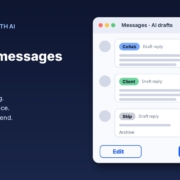
The quickest win is to stop treating every message the same. Before you write anything, sort each message by who is writing and what they want. I use four simple buckets:
The four buckets
- Peer or collaborator. Someone in your industry, a past colleague or a potential referral partner. The goal is a warm, genuine reply that keeps the relationship going.
- Potential client. Someone who has a problem you solve, or has asked about your services. The goal is to be helpful and suggest a clear next step.
- Pitch. Someone selling to you. Most of the time a short, polite “not for us right now” is all you need, or no reply at all if it’s clearly a mass message.
- Spam or skip. Obvious automated messages, scams or anything you’d never act on. Archive it and move on.
Let AI do the first sort
Copy a batch of messages (just the text, with names and personal details removed or shortened to first names) into your AI assistant and ask it to sort them. Here’s an example prompt:
“Here are 10 LinkedIn messages I’ve received. Sort each one into Peer/Collaborator, Potential Client, Pitch or Skip. For each one, give me one line on what the person wants and what a good next step would be. Don’t write any replies yet.”
You’ll get a short list you can scan in a minute. You’ll probably disagree with one or two, and that’s fine. The point is that your potential clients and good contacts float to the top instead of getting buried.
Step 2: Teach AI your writing style
The biggest complaint about AI-written messages is that they sound like AI: too long, too formal and full of phrases nobody actually says, like “I hope this message finds you well”. The fix is to show the AI how you write.
Build a small style sample
Go through your sent LinkedIn messages (and emails if you like) and copy 10 to 15 replies you were happy with. Include a mix: a warm reply to a contact, a reply to an enquiry, and a polite no. Paste them into a document called something like “How I write”.
Then ask your AI assistant to describe your style:
“Here are 12 messages I’ve written. Describe my writing style in 8 bullet points: length, tone, how I open and close, words I use often, and things I never do. I’ll use this as instructions for future replies.”
Read what it comes back with and fix anything that’s off. Add your own rules too, for example: “Australian spelling. No exclamation marks. Never more than four sentences. Always sign off with just my first name.”
Save it so you don’t repeat yourself
Most AI assistants let you save standing instructions, whether that’s a custom GPT in ChatGPT, a Project in Claude or saved instructions in Grokbot. Put your style notes and the four buckets in there. Next time, you just paste in the messages and ask for drafts.
Step 3: Draft a reply angle for each bucket
A good reply depends on who you’re talking to. Ask the AI to pick an angle based on the bucket, not to write a generic response. Here’s how I think about each one:
- Peer or collaborator: mention something specific from their message or their recent work, share something useful (an idea, an intro, a link), and leave the door open.
- Potential client: acknowledge their problem in their own words, ask one good question, and suggest a short call if it makes sense.
- Pitch: one or two sentences, polite, clear and final. No fake “maybe later”.
An example prompt:
“Using my style notes, draft a reply for each message in the Peer and Potential Client buckets, and a one-line reply for each Pitch. Keep each under 80 words. Don’t promise anything I haven’t said, don’t invent facts about my business, and flag anything you’re unsure about with [CHECK].”
That last line matters. If the AI doesn’t know your pricing or availability, you want it to leave a gap for you to fill in, not guess.
Step 4: Approve before you send (always)
This is the rule I never bend: AI drafts, you approve. Nothing goes out without you reading it and pressing send yourself.
Why not let a tool send them automatically?
Two reasons. The first is quality: you know things about the person and the relationship that the AI doesn’t.
The second is LinkedIn’s own rules. The LinkedIn User Agreement says members must not “use bots or other unauthorized automated methods to access the Services, add or download contacts, send or redirect messages”. LinkedIn’s help page on prohibited software and extensions also says it doesn’t permit third-party software, bots or browser extensions that scrape, change how the site looks or automate activity on LinkedIn. So skip the tools that promise to auto-reply or auto-message for you. Copying a draft from your AI assistant and sending it yourself keeps you in control and within the rules.
Mind what you paste in
LinkedIn messages often contain names, phone numbers and details about people’s businesses. Only paste in what the AI needs to draft a reply, trim personal details where you can, and check your AI tool’s data settings. The OAIC’s guidance on privacy and commercially available AI products is a good, plain-English read if you’re unsure.
Step 5: Move good conversations to a call or meeting
LinkedIn is great for starting conversations and pretty poor for finishing them. Once a chat with a potential client or a promising collaborator is going well, move it somewhere more useful: a phone call, a video meeting or a coffee.
Make the next step easy
Ask the AI to end Potential Client replies with one simple, specific option. For example (wording is just an example): “Happy to have a quick 15-minute chat about it. Would Tuesday or Thursday morning suit?” or a link to your booking page if you use one. Don’t stack three questions and a link to your website in the same message.
Prepare before the call
Once a call is booked, the same AI assistant can help you prepare. I’ve written a separate guide on how to prep for a sales call with AI, which picks up right where this one finishes. And if your email inbox is just as bad as your LinkedIn messages, the same sort-then-draft approach works there too: see how to sort your inbox with AI.
What to do this week
- Monday: copy 10 to 15 of your best sent messages into a “How I write” document.
- Tuesday: ask your AI assistant to turn them into style notes, then fix anything that doesn’t sound like you.
- Wednesday: save the style notes and the four buckets as standing instructions in ChatGPT, Claude, Grokbot or whichever assistant you use.
- Thursday: set aside 20 minutes, paste in your unread LinkedIn messages, sort them and draft replies.
- Friday: read every draft, edit what needs editing, and send them yourself. Note which drafts needed the most changes and add a rule to your style notes so next week’s are better.
If you’d like the ready-made version, the Inbox Triage agent in my free Steal My AI Agents pack uses the same sort-then-draft approach and works with any AI assistant.
FAQ
Is it against LinkedIn’s rules to use AI to write messages?
LinkedIn’s User Agreement prohibits bots and unauthorised automated methods that send messages, along with third-party software and browser extensions that automate activity on the site. Drafting a reply in a separate AI assistant, then reading it and sending it yourself, is writing help, not automation. If you’re ever unsure, check the current User Agreement.
Will people be able to tell my reply was written with AI?
They’re much less likely to if you train the AI on your own messages, keep replies short and edit every draft before sending. The replies that give AI away are long, formal and generic. Yours should sound like a quick note from you, because that’s what it is.
Which AI tool is best for replying to LinkedIn messages?
Any good AI assistant works, including ChatGPT, Claude or Grokbot. The tool matters less than what you give it: your style notes, the four buckets and a clear rule not to invent facts or promises.
Want your messages handled without losing your voice?
Grab the free Steal My AI Agents pack. It includes ready-to-use agents for inbox triage, lead replies, follow-up, reviews, onboarding and a weekly business review, and it works with ChatGPT, Claude, Grokbot or any AI assistant. Want help setting it up for your business? Book a free AI audit.