You paid for a CRM because someone told you it would keep every lead, every client and every deal in one place. And it can. The catch is that it only knows what somebody types into it. After a long day on calls, in meetings or on the tools, nobody feels like writing up notes, updating the deal stage and setting a follow-up task. So the CRM slowly turns into a very expensive contact list with half the details missing.
The usual reaction is to blame the software and start shopping for a new one. In my experience that’s rarely the real problem. The problem is that nothing is feeding the CRM you already have.
In this post I’ll show you how to use AI to keep your CRM up to date without switching systems: turning messy call notes into clean records, catching leads that have gone quiet, and keeping deal stages honest. You can start today with copy and paste in ChatGPT, Claude, Grokbot or any AI assistant, then automate more once you trust it.
Why your CRM is always out of date
When I sit down with small business owners and open up their CRM, I usually see the same patterns:
- Blank or half-filled contact records. A name and a phone number, but no notes on what they wanted, what was quoted or what happens next.
- Deals stuck in the wrong stage. A job that was won three weeks ago is still sitting in “Quote sent”, so the pipeline tells you nothing useful.
- No next step. Leads with no follow-up task, so they only get chased if someone happens to remember.
- Notes living everywhere else. The real detail is in someone’s notebook, a text thread or their head.
None of this is laziness. Data entry is boring, it happens at the worst possible time (straight after a call, when the next one is already ringing), and nobody sees the benefit until months later. That’s exactly the kind of work AI is good at taking off your plate.
Why switching CRMs usually doesn’t fix it
Moving to a new CRM feels like a fresh start. But you’d be spending weeks migrating data, rebuilding pipelines and retraining the team, and the new system would still rely on the same people typing in the same notes at the end of the same busy days. Six months later you’re back where you started, just with a different logo on the screen.
The better question isn’t “which CRM should we use?” It’s “what is going to keep our CRM updated?” That’s where an AI assistant, and later an AI agent, comes in.
What AI can do for your CRM
Think of AI as the admin person who sits next to your CRM and does the typing. There are three jobs it does well.
1. Turn messy notes into clean records
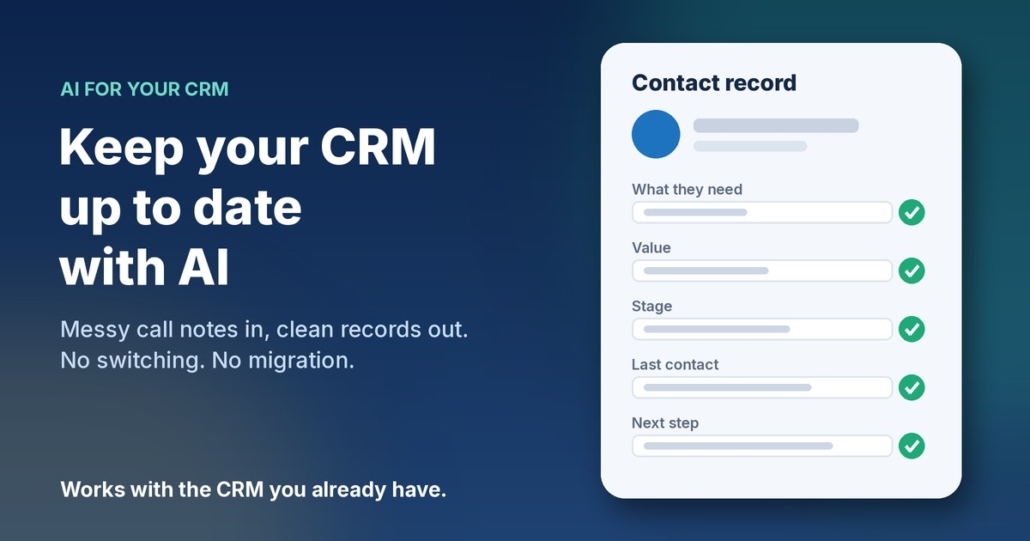
After a call, you jot down a few rough lines or record a quick voice memo. The AI turns that into a tidy summary with the fields your CRM actually uses: what they need, budget if mentioned, timeframe, decision maker, objections, and the agreed next step with a date. You paste it straight into the contact or deal.
2. Catch the leads that have gone quiet
Once a week, export your open leads or deals (most CRMs let you export a list to a spreadsheet) and ask the AI to flag anything with no activity for a set number of days or no next step booked. You get a short list of who to chase, plus a suggested follow-up message for each one.
3. Keep deal stages honest
Give the AI the same export and your stage definitions, and ask it to point out deals that look like they’re in the wrong stage based on the notes. A deal with a signed quote in the notes but still marked “Contacted” gets flagged for you to fix.
Notice that in all three jobs the AI suggests and you decide. It doesn’t need a login to your CRM to be useful on day one.
How to set it up this week (no integrations)
Here’s the simplest way to start. It takes about half an hour to set up and a few minutes a day after that.
Step 1: Write down what a “complete” record looks like
Open your CRM and list the fields that actually matter to your business. For most small businesses it’s something like: contact details, source (how they found you), what they need, value of the job, stage, last contact date, and next step with a date. Keep it short. If a field never gets used, leave it out.
Step 2: Give your AI assistant a standing brief
Most AI assistants let you save instructions in a project, custom GPT or similar. Paste in something like this and adjust it to suit:
You help me keep my CRM up to date. When I paste in rough notes from a call, email or meeting, turn them into a CRM update with these fields: Contact, Source, What they need, Estimated value, Stage, Last contact date, Next step and date, Notes (three lines max). Only use information in my notes. If something isn’t mentioned, write “not provided”. Never guess numbers or dates. Finish with one line suggesting the next action if I haven’t given one.
The “only use information in my notes” line matters. Without it, AI tools can fill gaps with confident-sounding guesses, and a CRM full of made-up details is worse than a blank one.
Step 3: Use it straight after every call
Make it a habit: hang up, paste your rough notes or a voice-to-text transcript into the assistant, copy the result into the CRM. It’s thirty seconds of work instead of five minutes of typing, which is the difference between it happening and not happening.
Step 4: Run a weekly pipeline check
Once a week, export your open deals and paste them in with a prompt like:
Here are my open deals. List any with no activity in the last 7 days or no next step booked, and any that look like they’re in the wrong stage based on the notes. For each one, give me a one-line reason and a short, friendly follow-up message I could send. Don’t invent any details that aren’t in the data.
Work through the list, update the CRM and send the follow-ups you’re happy with. If you want help writing follow-ups that don’t sound pushy, I covered that in how to follow up leads with AI.
When to move from copy-paste to an AI agent
Copy and paste is the right place to start because you get to see exactly what the AI produces and fix the brief before anything runs on its own. Once you trust the output, the next step is an AI agent that does the same jobs without you in the middle: picking up new enquiries, writing the notes into the record, setting the follow-up task and flagging stale deals each week.
Whether that’s possible depends on your CRM and your AI tools. Many CRMs have an API or built-in automation, and some AI assistants can connect to other apps. That’s the part worth getting right with someone who has done it before, because a badly set up agent can create a mess in your data just as fast as it fixes one. My advice: automate one job at a time, starting with the one you hate most, and keep a human check on anything that goes out to a customer.
Keep customer data safe
Your CRM is full of personal information, so treat it carefully when you bring AI into the picture.
- Check your AI tool’s data settings. Use a business plan where possible and turn off any option that lets the provider train on your data. The OAIC has practical guidance on privacy and the use of commercially available AI products that’s worth a read, and it recommends not entering personal information into publicly available AI tools where you can avoid it.
- Share only what’s needed. For a pipeline check, the AI rarely needs phone numbers or home addresses. Remove columns you don’t need before you paste.
- Accuracy is part of the job. Under the Australian Privacy Principles, businesses covered by the Privacy Act need to take reasonable steps to keep the personal information they hold accurate, up to date and complete (see the OAIC’s APP quick reference, APP 10). A tidy, current CRM helps with that, as long as the AI isn’t guessing.
Common mistakes to avoid
- Letting the AI guess. If a budget or date wasn’t mentioned, it should say so. Check the first few weeks of updates closely.
- Tracking too many fields. Ten fields nobody fills in are worse than five that are always right.
- Automating before the habit exists. Get the copy-paste routine working first. An agent built on a process nobody follows just automates the chaos.
- Sending follow-ups without reading them. The AI drafts, you decide. Your name is on the message.
Frequently asked questions
Do I need to switch CRMs to use AI?
No. This approach works with the CRM you already have, whether that’s HubSpot, GoHighLevel or something else. You start with copy and paste, so it doesn’t matter which system you use.
Which AI tool should I use?
Whichever one you already use. The briefs above work in ChatGPT, Claude, Grokbot or any AI assistant. A clear brief and honest notes matter more than the brand of tool.
How long does it take each day?
About thirty seconds after each call to paste in your notes and copy the update back, plus fifteen minutes or so for the weekly pipeline check. Setting up the brief takes around half an hour.
Can AI update my CRM automatically?
Often, yes, but it depends on your CRM and your tools. Start manually so you can check the output, then automate one job at a time once you trust it.
Is it safe to put customer details into AI?
Share only what’s needed, use a business plan with training on your data turned off, and follow the OAIC’s guidance on commercially available AI products. If in doubt, remove names and contact details before pasting.
Want AI agents working on your CRM?
I set up AI agents that sit on top of the CRM you already pay for, handling the notes, follow-ups and pipeline updates so your team can get back to selling. No migration.
Want to try it yourself first? Grab my free Steal My AI Agents pack, which works with ChatGPT, Claude, Grokbot or any AI assistant. Or book a free AI audit.